1. Getting started
Join, pick your items, enter what you have today.
Join Adera
Who: EveryoneWhere: adera.com.et → Start your business
- Step 1, Your business: type the business name, choose the type of business, how big it is and your town.
- Step 2, What you need: choose a package (Finance, Operations + Finance, with Integration, or Integration only).
- Step 3, About you: your name, mobile number and a password of 8 or more characters. Tap Start my business.
- Your mobile number is your login. One login opens every business you belong to.
- Every record is real from the first sale. There is no practice mode.
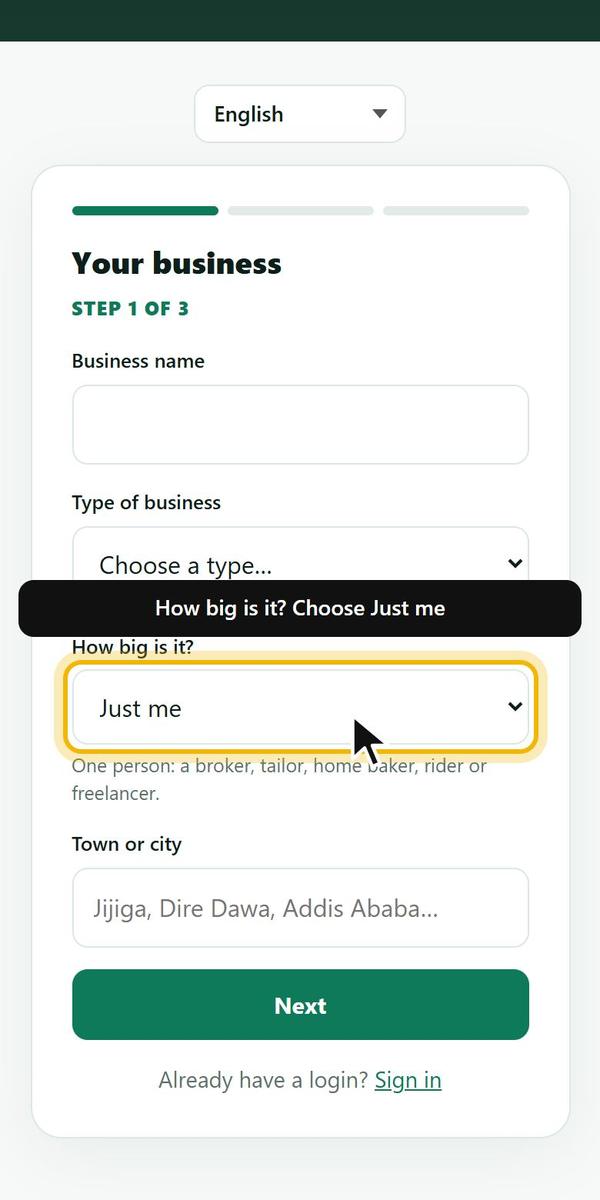 Example screen
A one-person business (Just me)
Who: EveryoneWhere: Join → How big is it? → Just me
- When joining, choose How big is it? → Just me.
- Finance only: Home shows Money in, Money out, Money, and Credit & debt.
- Just me with Operations + Finance: Home shows Sell, Stock and Close the day, for a person who sells goods alone.
- Record money as it happens: Money in or Money out, the amount, where it went, what it was, Save.
- Already joined as a bigger business? My plan → Size of the business → Just me → Move to this. Records stay.
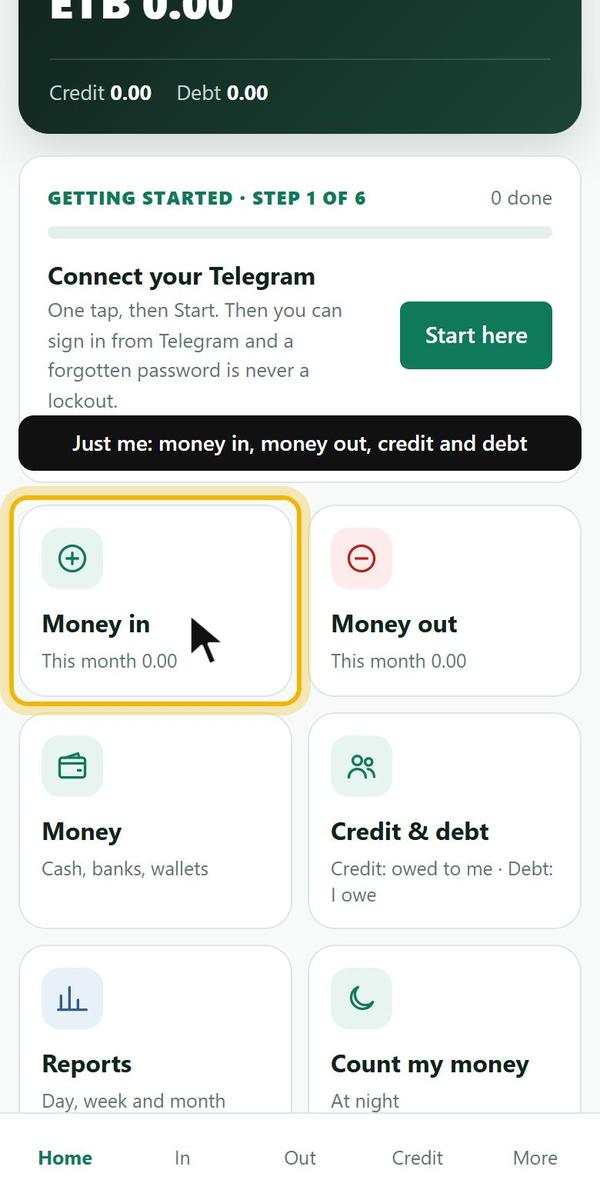 Example screen
Getting started steps on Home
Who: EveryoneWhere: Home → Getting started
- Home shows one step at a time: connect Telegram, pick what you sell, add bank and wallet accounts, enter what you have today, record your first sale, close your first day.
- Tap Start here to open the next step. Tap All steps to jump to any step.
- A step turns done by itself when the book shows it.
- Steps never lock. You can do them in any order.
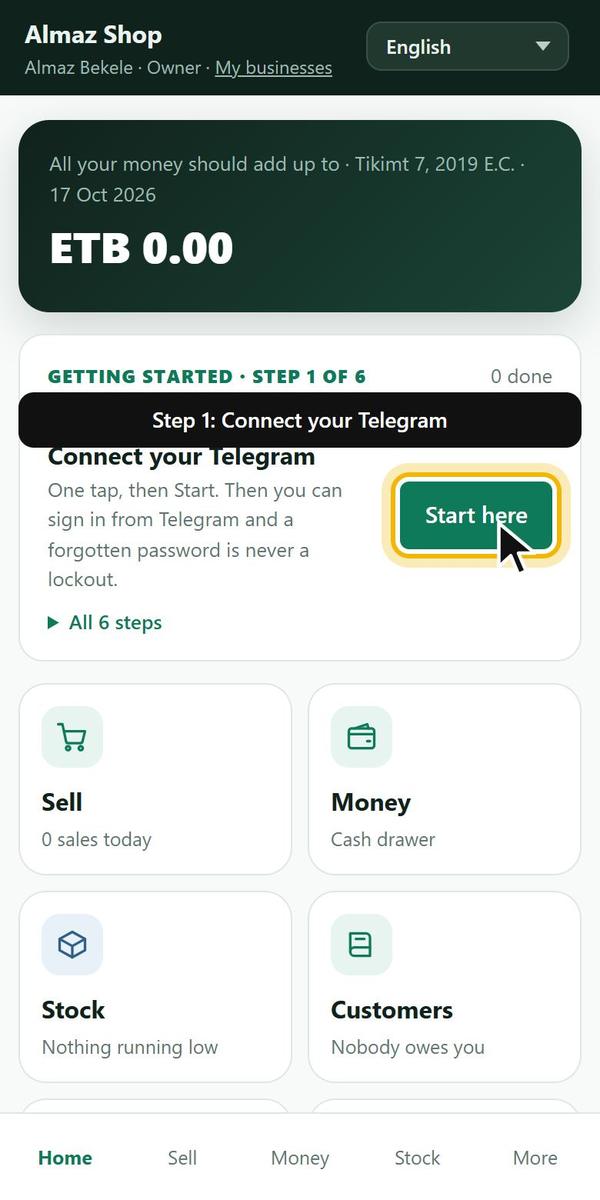 Example screen
Pick what you sell and use
Who: Owner, managerWhere: Home → Pick what you sell, or More → Add items
- Tick the usual items for your kind of business.
- Type your own price for each one. Add another for anything missing.
- Tap Save. You can change names, units and prices later in Setup.
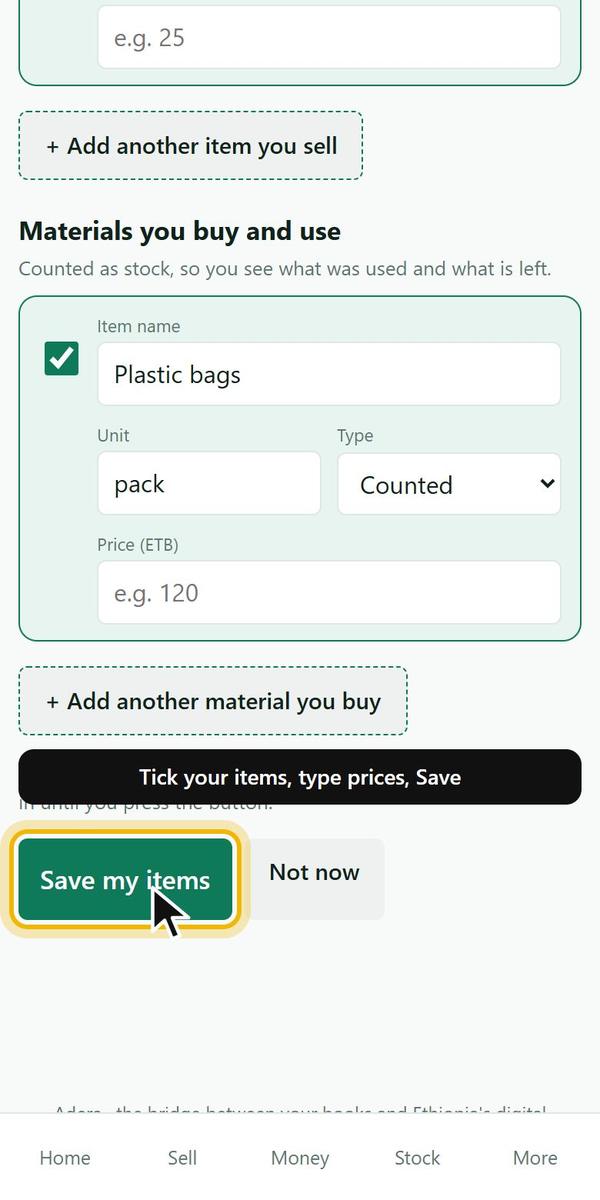 Example screen
Enter what you have today (starting balances)
Who: Owner, managerWhere: More → Starting balances
- Starting date: the day your book starts.
- Stock on hand: one line per item, how many, and the cost of one.
- Money in each place: cash drawer, each bank and each wallet.
- Who owes whom: customers who owe you, suppliers you owe, money lent or borrowed.
- Check everything, tick the box, and lock.
- Enter it once. A wrong line: tap Edit on it. After locking, see Fix starting balances.
- After locking, every change is a stock count or a transfer, so the book always explains itself.
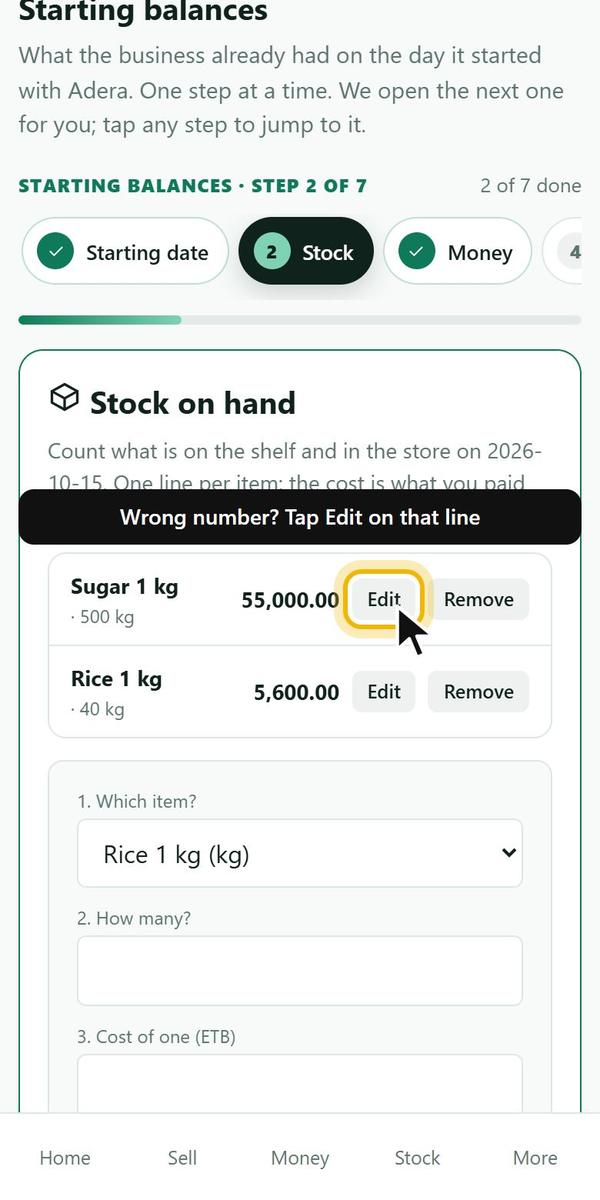 Example screen
2. Signing in and passwords
Your login, Telegram, forgotten passwords, lost phones.
Connect your Telegram (do it once)
Who: EveryoneWhere: Home → Connect your Telegram, or More → My password
- Tap Start here (Home) or Connect my Telegram (My password).
- Telegram opens a private chat with the Adera bot. Press Start.
- The bot replies Connected. Back in Adera the step shows done.
- After this you can sign in from Telegram and a forgotten password is one tap.
- Only your own private chat, never a group.
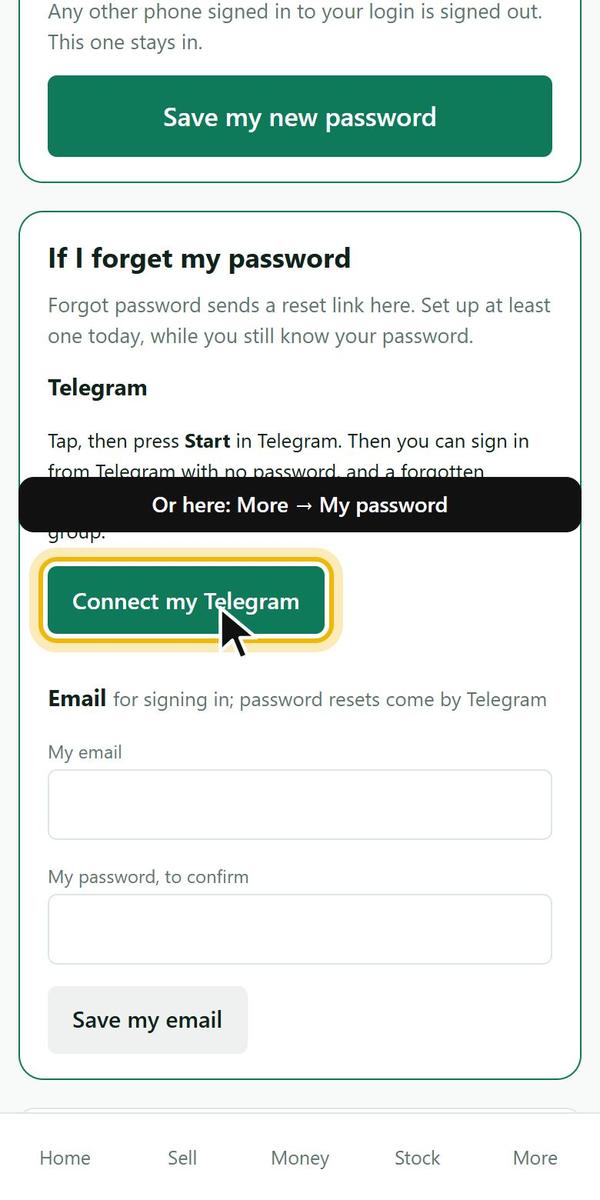 Example screen
Sign in without a password (Telegram)
Who: EveryoneWhere: Sign-in page → Sign in with Telegram
- On the sign-in page tap Sign in with Telegram, or send /signin to @AderasupportBot.
- Never connected? Tap Share my phone number in the bot. It must be the number you sign in to Adera with.
- Tap Sign in as … in the bot's message. Adera opens, signed in.
- The link works once, for 10 minutes.
- It opens the business you used last; switch from the top bar.
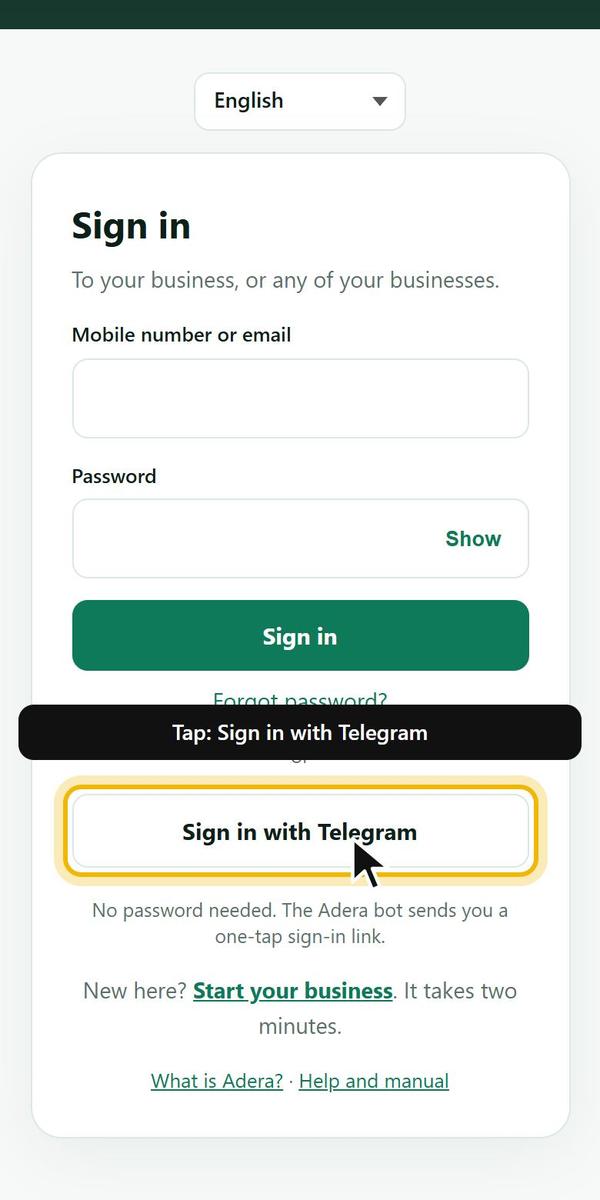 Example screen
Forgot your password
Who: EveryoneWhere: Telegram bot → /reset, or Sign-in → Forgot password?
- Connected Telegram: send /reset to @AderasupportBot. The link comes at once.
- Never connected: Sign-in → Forgot password? → Get the link in Telegram → Start → Share my phone number.
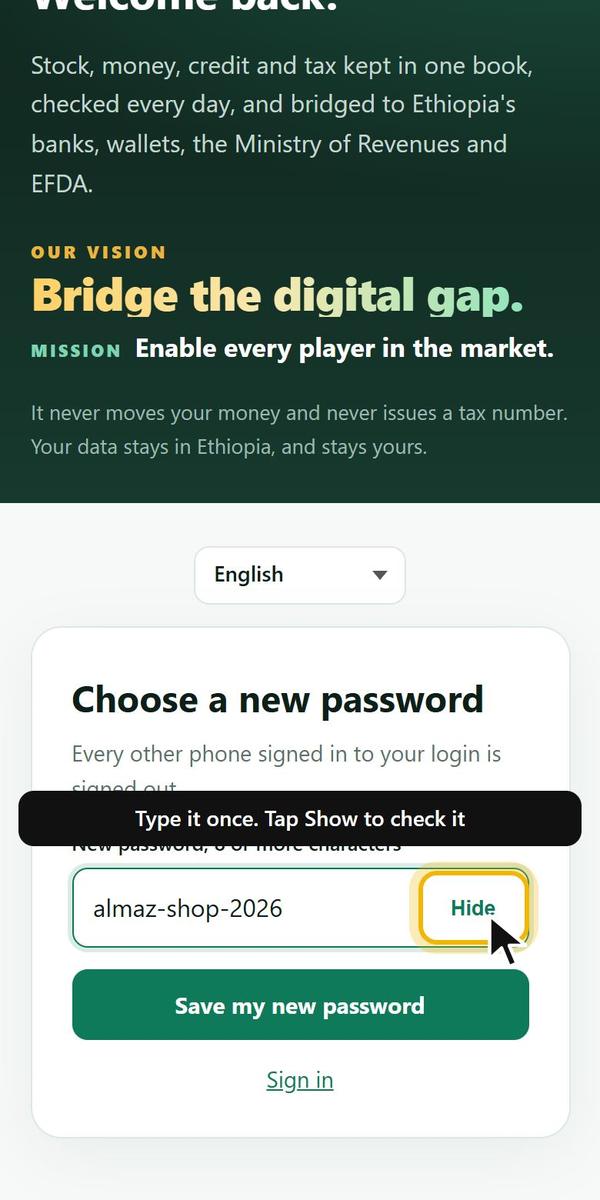
- Tap the reset link. Type the new password once, tap Show to check it, Save.
- On another phone or a computer, type the 6-digit code from the message instead.
- The link and the code work once, for 15 minutes.
- Bot says No Adera login uses 09…? Your Telegram uses another number. Staff: ask the owner. Owner: contact Adera support.
- The bot is quiet right after an Adera update: wait two minutes and press Start again.
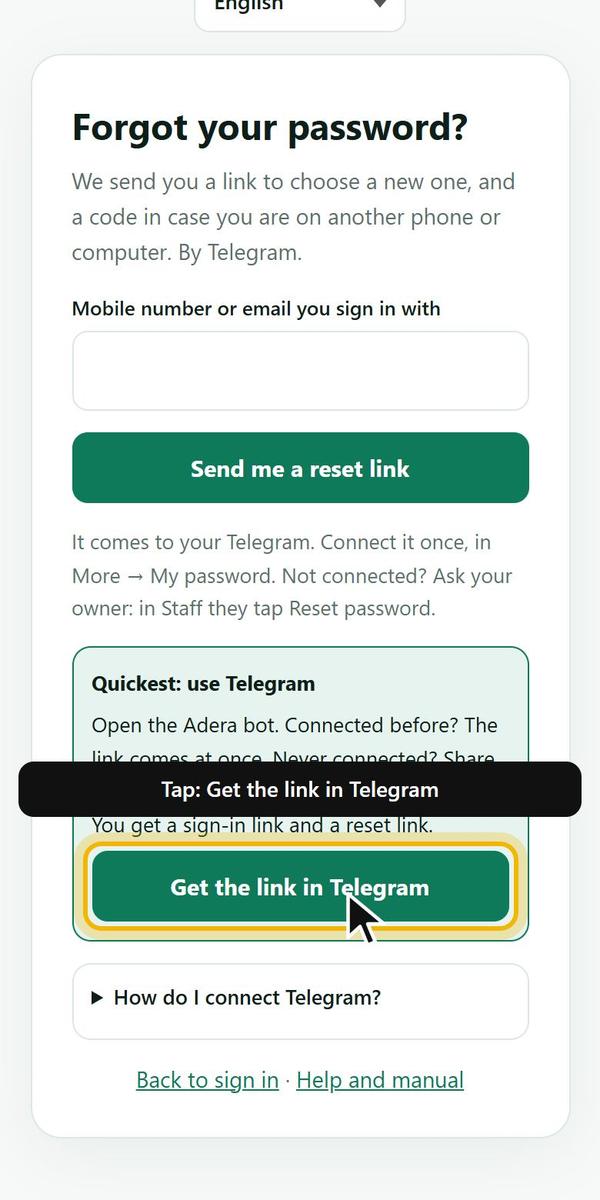 Example screen
Choose a new password
Who: EveryoneWhere: Reset link, or More → My password
- Type the new password once. 8 or more characters.
- Tap Show to see what you typed, Hide to cover it again.
- Tap Save my new password.
- Every other phone signed in to your login is signed out.
 Example screen
Change my password
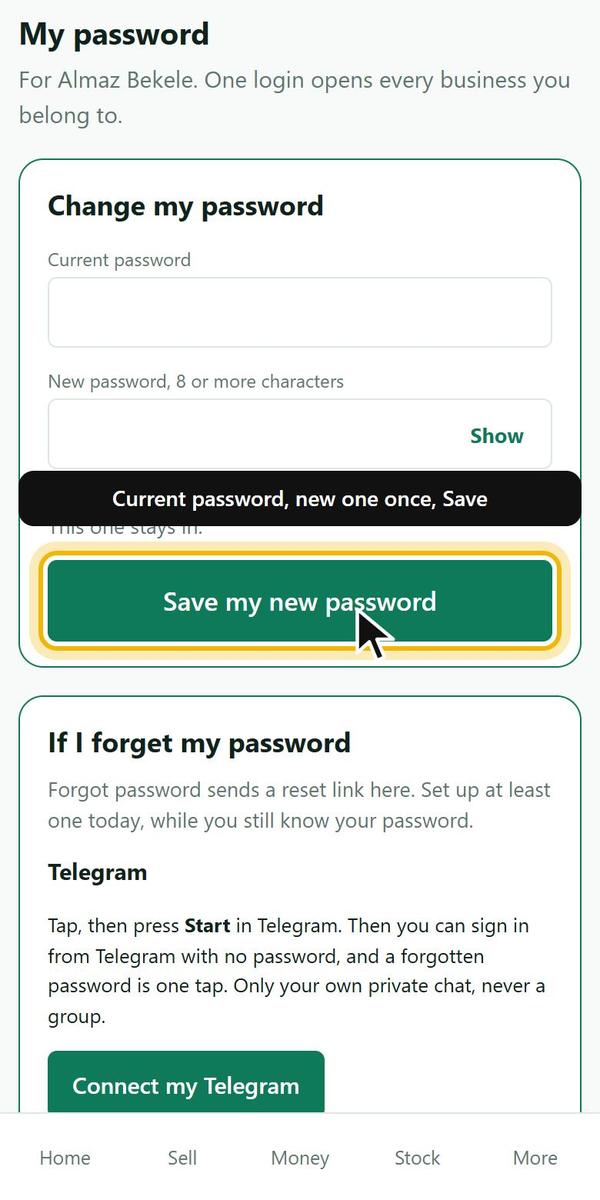
Who: EveryoneWhere: More → My password
- Type your current password.
- Type the new one once (Show to check).
- Tap Save my new password.
- Forgot the current one? Use /reset in Telegram instead.
 Example screen
Reset a staff member's password
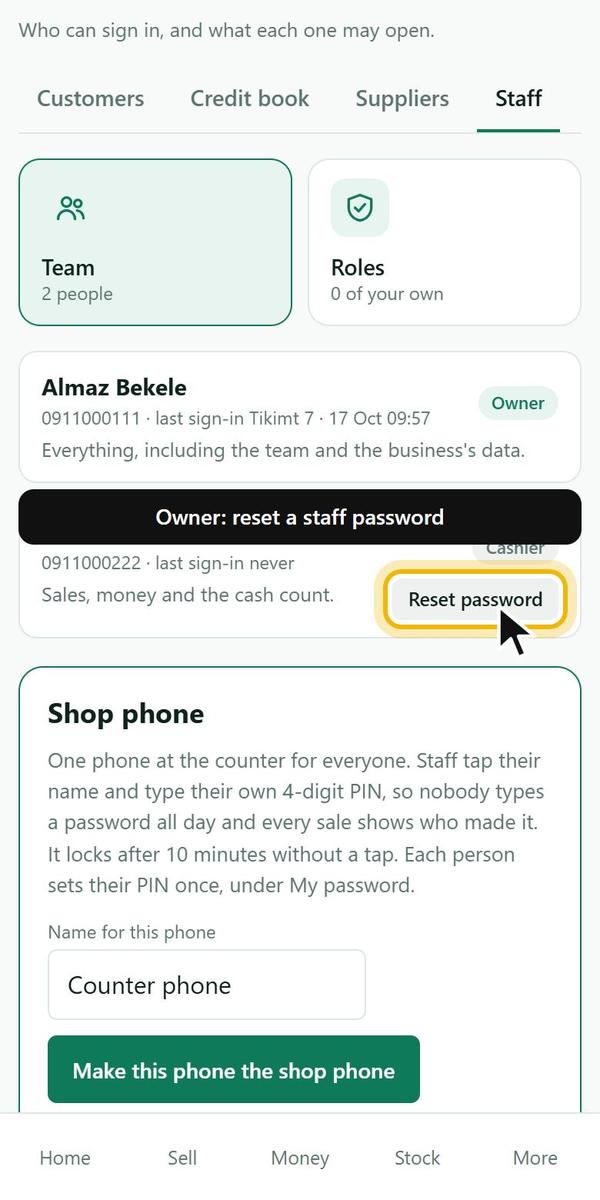
Who: OwnerWhere: More → Staff → Reset password
- Find the person in Staff and tap Reset password.
- Adera shows a one-time password on screen. Give it to them in person.
- They sign in with it and must choose their own at once.
- Not for the owner's own login, and not for someone who also works for another business on Adera: they use Telegram or Forgot password.
 Example screen
Lost a phone: sign out everywhere
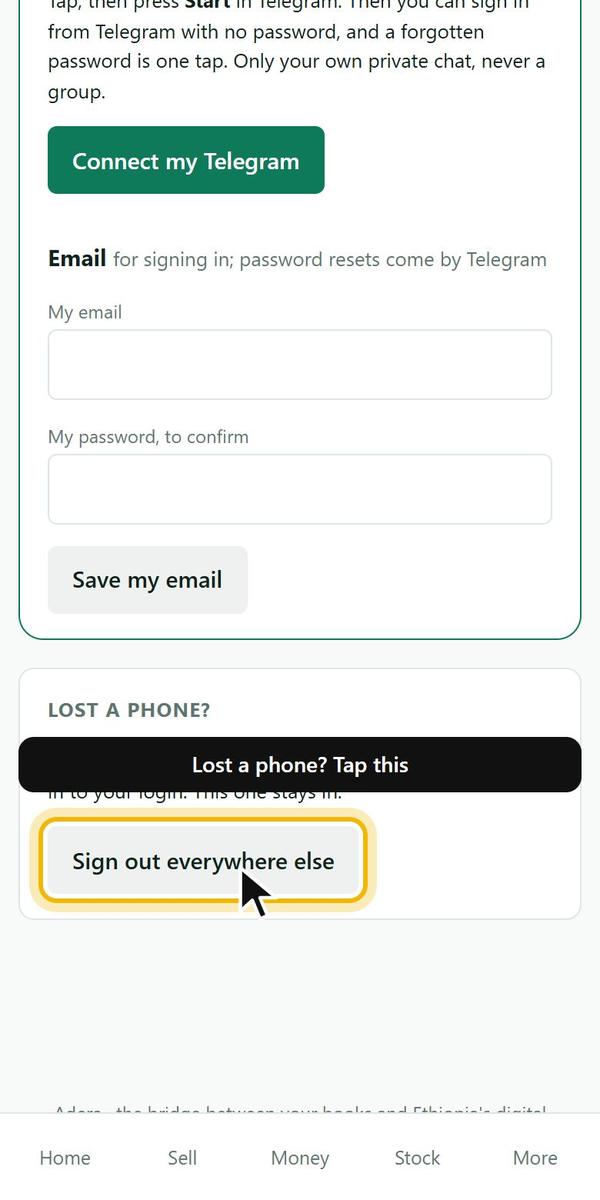
Who: EveryoneWhere: More → My password → Sign out everywhere else
- Tap Sign out everywhere else.
- Every other phone and computer on your login is signed out. This one stays in.
- Also change your password if someone may know it.
 Example screen
Shop phone and 4-digit PIN
Who: OwnerWhere: More → Staff → Shop phone
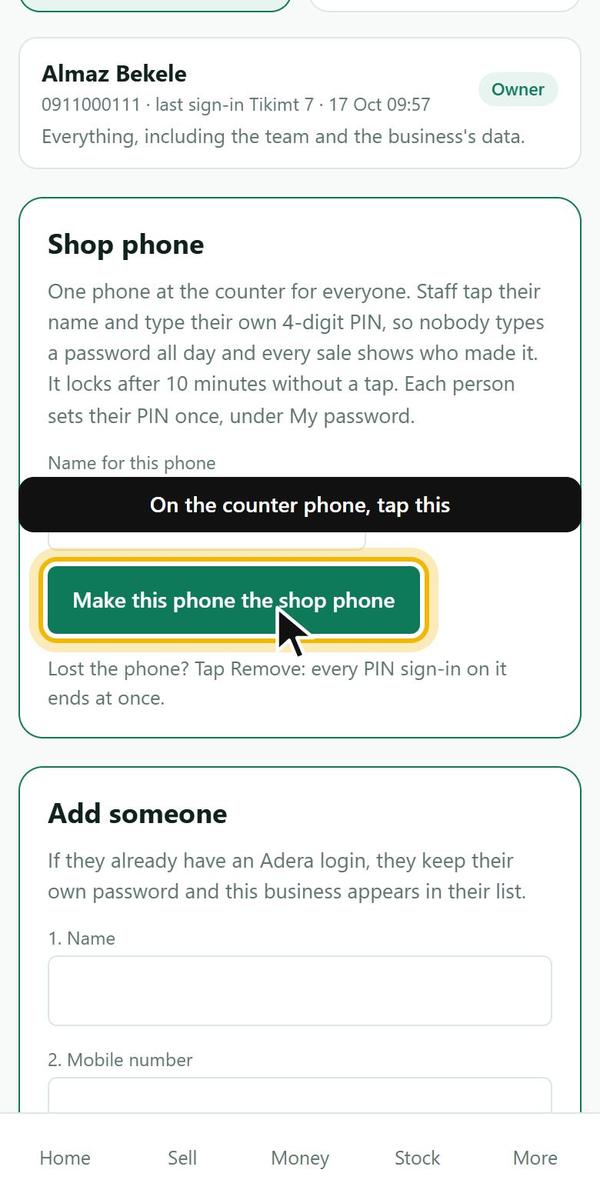
- On the counter phone, sign in as the owner and tap Make this phone the shop phone.
- Each person sets a 4-digit PIN once, in More → My password.
- On the shop phone: Who is working? → tap your name → type your PIN.
- A PIN works only on that phone and only in that business. It locks after 10 minutes without a tap.
- Every sale shows who made it.
 Example screen
3. Selling
Sales, receipts, credit, voids.
Make a sale
Who: Owner, manager, cashier, accountantWhere: Home → Sell → Full form
- Open Sell and tap Full form (for services, credit, a customer or a transaction ID).
- What was sold: choose the item, the quantity and the price.
- Who bought: walk-in customer, or choose a customer (needed for credit).
- How they paid: cash, bank or wallet, and the amount. Or leave it unpaid for credit.
- Save. Stock goes down and the money lands in its place.
- Sell stays one quick screen.
 Example screen
Quick sell buttons
Who: Owner, manager, cashierWhere: Sell → Quick sell
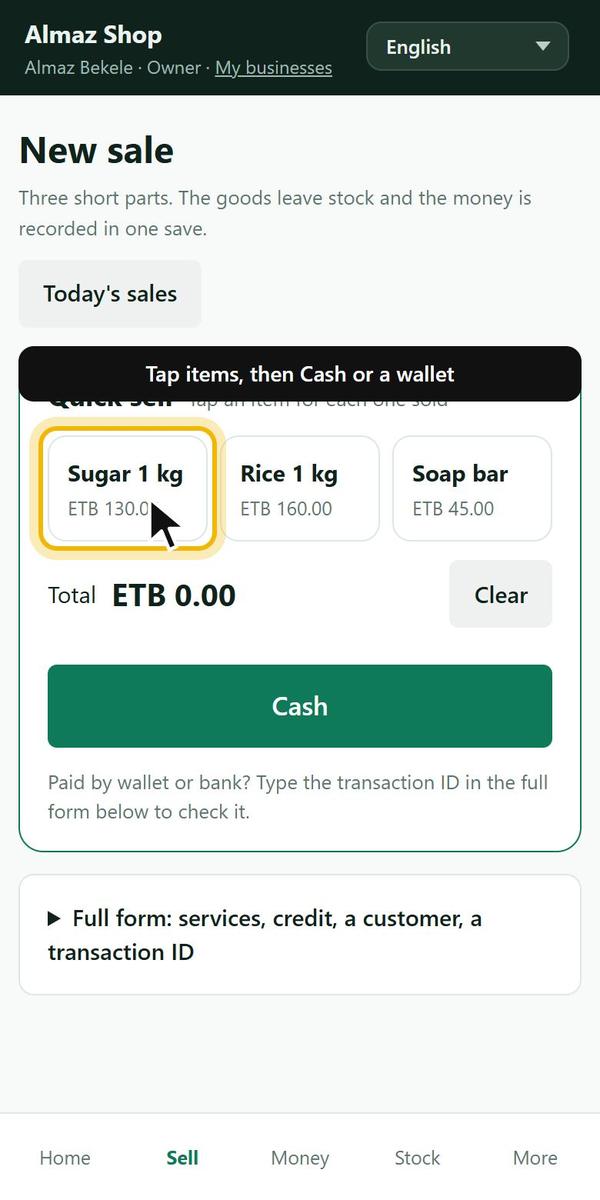
- Your most-used priced items show as buttons at the top of Sell.
- Tap items to add them, then tap Cash or a wallet to finish.
Example screenSell on credit
Who: Owner, manager, cashierWhere: Sell → Who bought → a customer
- Choose the customer and the days of credit.
- Leave the payment empty, or enter what they paid now.
- The sale shows Still to pay. It appears in the Credit book.
- When they pay, open the sale and use Add a payment, or Money → A customer paid.
Share a receipt
Who: Owner, manager, cashierWhere: Sales → open the sale
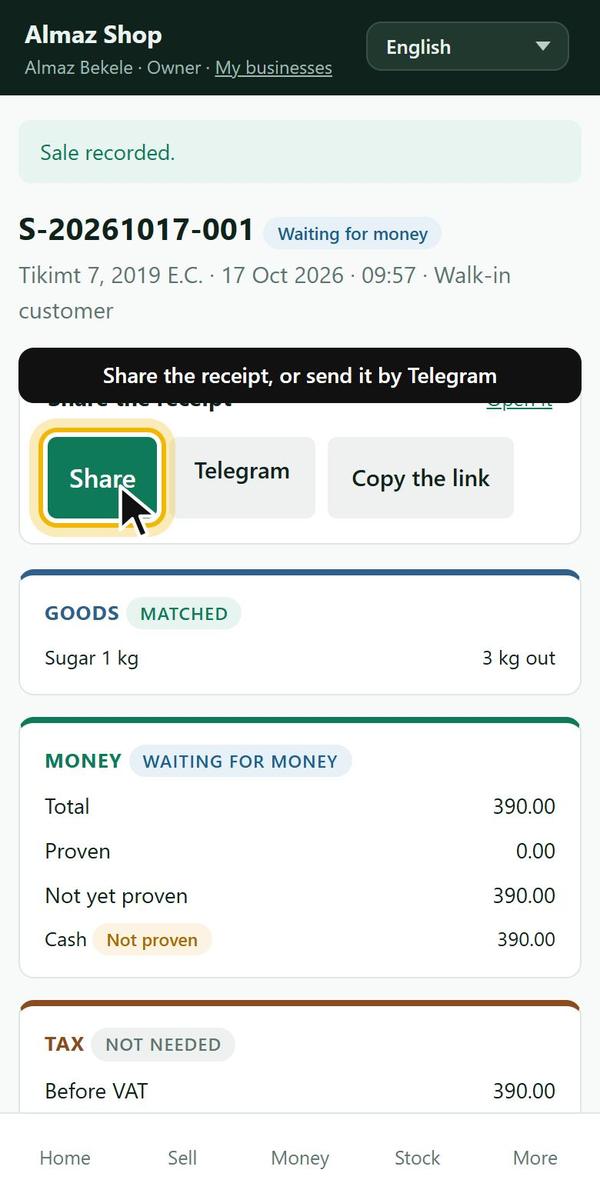
- Open the sale.
- Tap Share, Telegram, or Copy the link.
- If the customer joined your shop on Telegram, tap Send it to them on Telegram.
- The receipt link opens without signing in and shows only that sale.
 Example screen
A customer paid later
Who: Owner, manager, cashier, accountantWhere: Sale → Add a payment, or Money → Customer paid
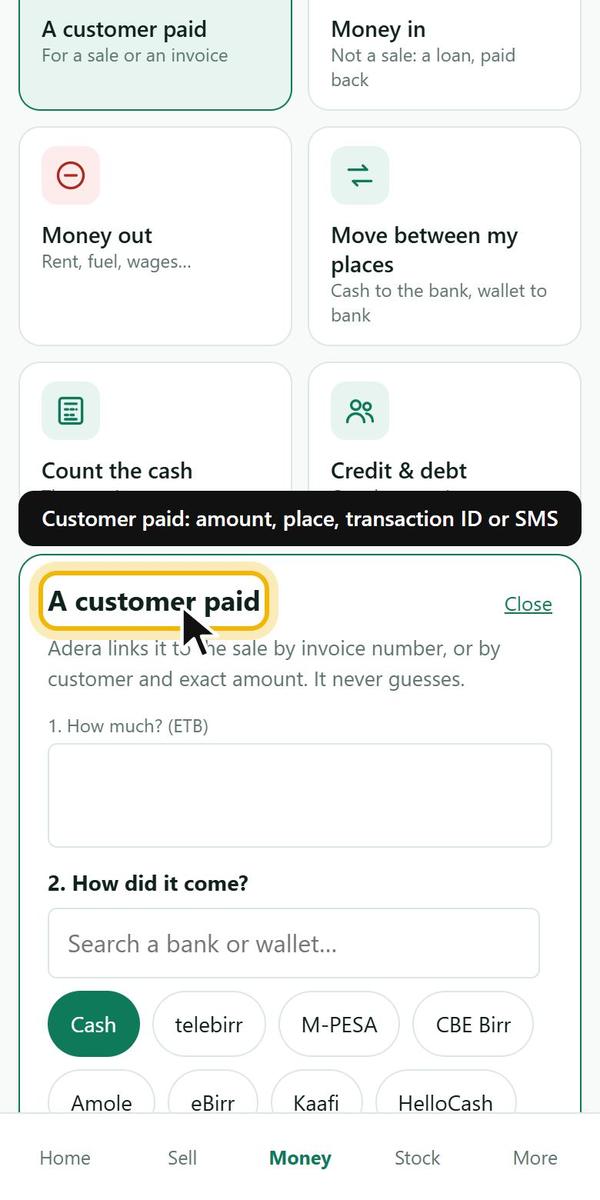
- Choose the sale or the customer, the amount and where the money came in.
- For a bank or wallet payment, type the transaction ID or paste the payment SMS so Adera can prove it.
- Save. The sale's Still to pay goes down.
- The pasted SMS is read and never stored.
 Example screen
The customer withheld tax
Who: Owner, manager, accountantWhere: Sale → Customer withheld tax
- Type the certificate number and the amount withheld.
- Tap Record certificate so the sale matches.
Undo a wrong sale (void)
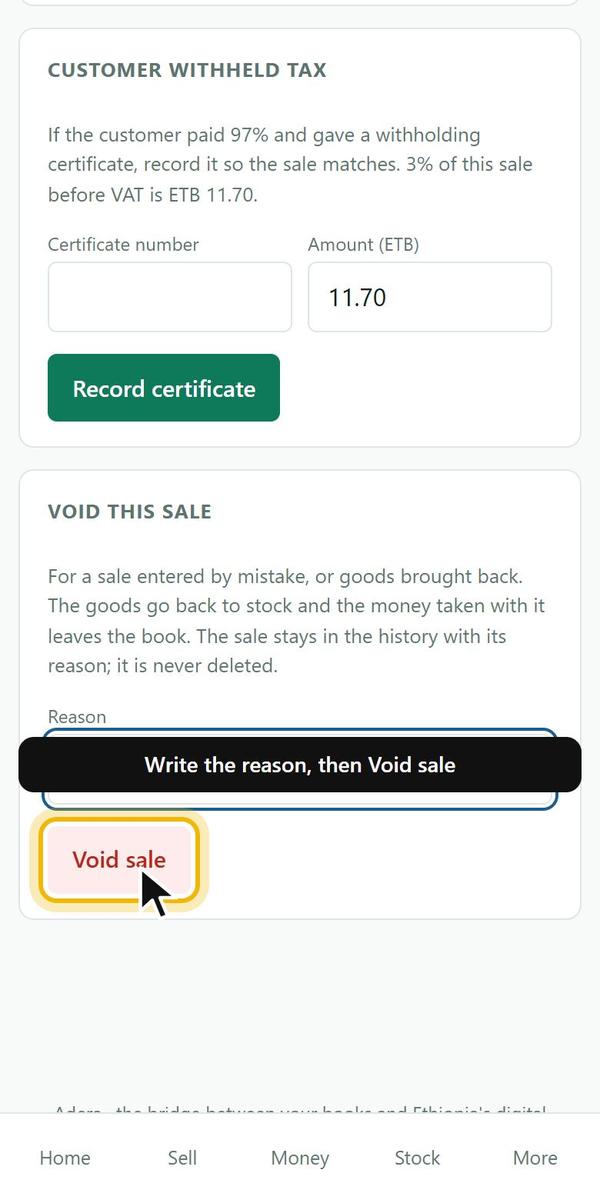
Who: Owner, managerWhere: Sales → open the sale → Void this sale
- Open the sale.
- Write the reason.
- Tap Void sale.
- The goods go back to stock and the money taken leaves the book.
- The sale stays in the history, marked void, with your reason. It is never deleted.
 Example screen
4. Money
Cash, banks, wallets, transfers and counts.
Add a bank or wallet
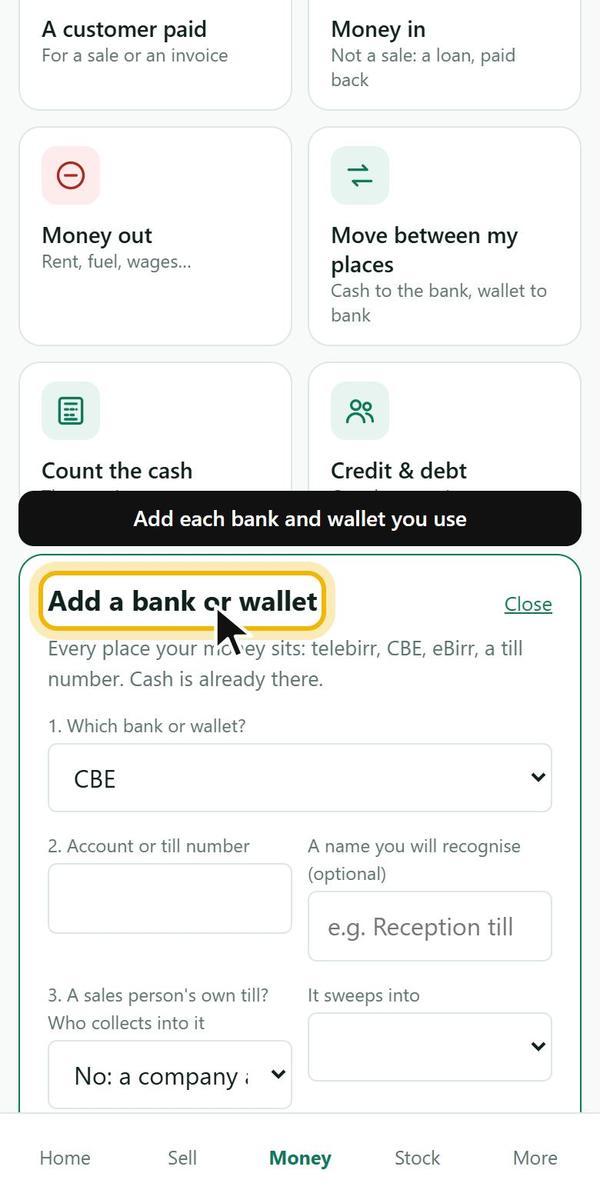
Who: Owner, managerWhere: Money → Add a bank or wallet
- Cash drawer is already there.
- Add each bank account and wallet you use: telebirr, CBE, eBirr, Kaafi and others.
- Save. Sales and payments can now land there.
- Adera never moves money. It shows where money is and proves payments.
 Example screen
Move money between my places
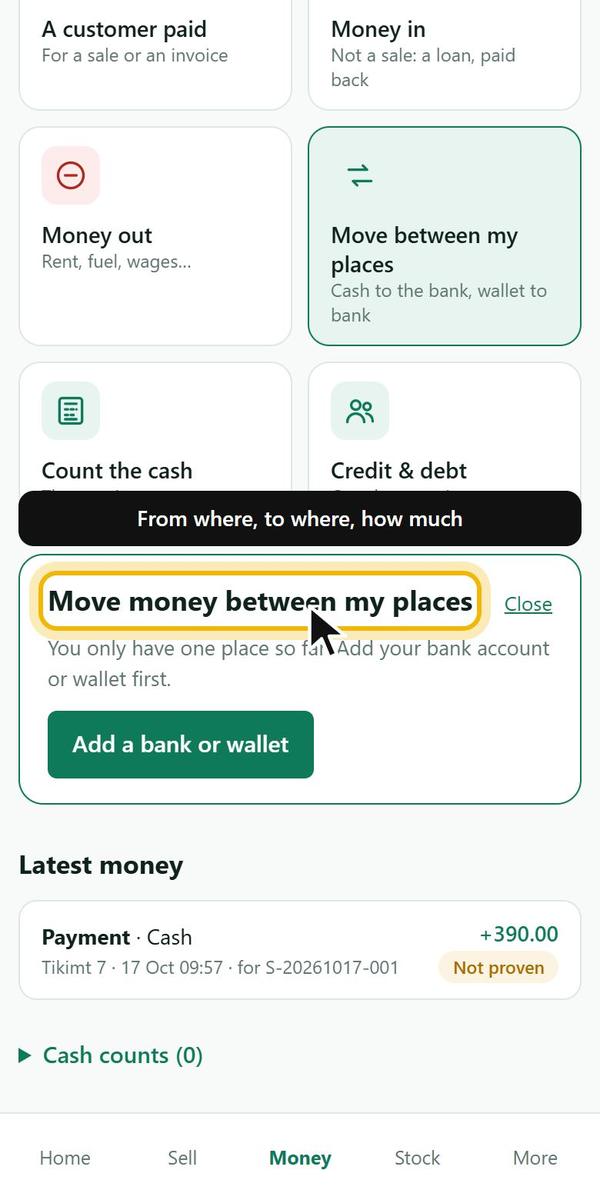
Who: Owner, manager, accountantWhere: Money → Move
- Choose from where, to where, and the amount.
- Save. Both places update.
- Use this for a cash deposit at the bank, or wallet to bank.
 Example screen
Count the cash
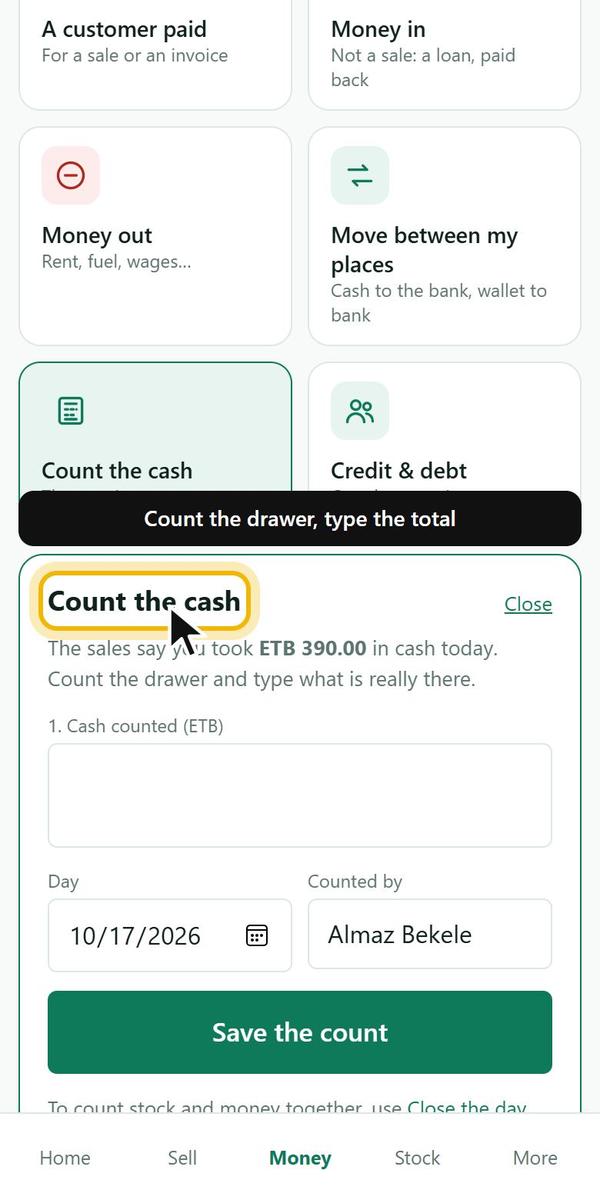
Who: Owner, manager, cashierWhere: Money → Count cash
- Count the notes in the drawer.
- Type the total and save.
- Adera compares it with what the book expects. A difference becomes a Check question.
 Example screen
My till (staff who hold money)
Who: Staff with a tillWhere: Home → My till
- Sales you take by your wallet land in your own till.
- When you hand the money over, tap Sweep to move it to the business.
- You see and sweep only your own till.
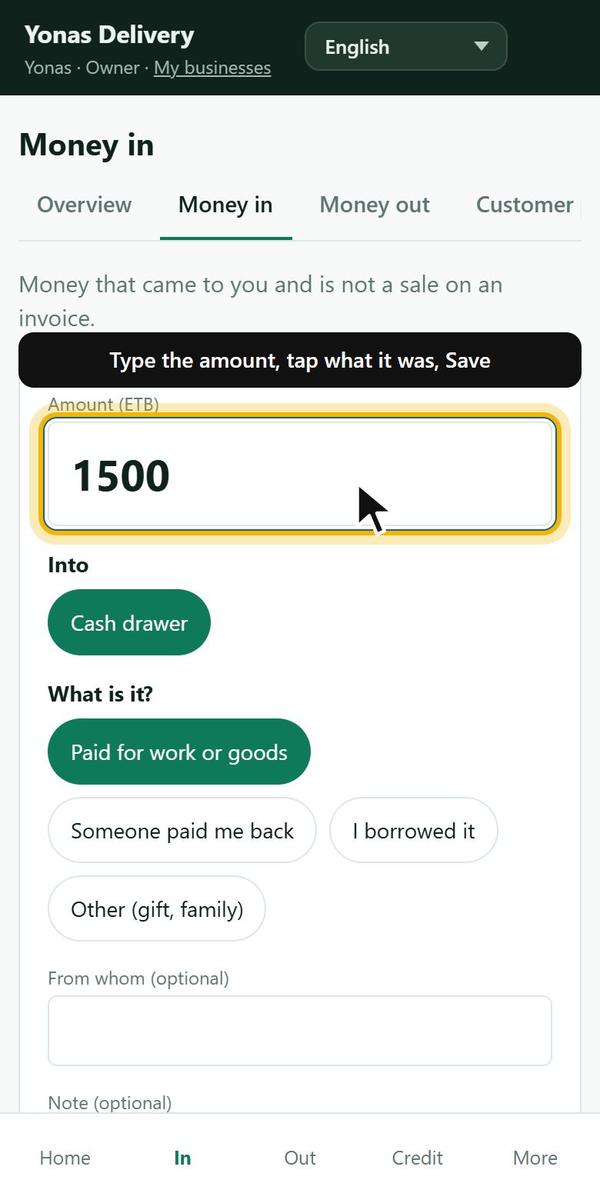
Money in and Money out (everyday money)
Who: Owner, manager, accountant, Just meWhere: Home → Money in / Money out
- Type the amount.
- Choose where it went (or came from).
- Choose what it was: paid for work, paid back, borrowed; or a cost, personal spending, lent.
- Add who, if a person is involved, and save.
- A wrong entry? The owner or a manager taps Fix beside it under Latest, then Edit or Remove, with the reason.
 Example screen
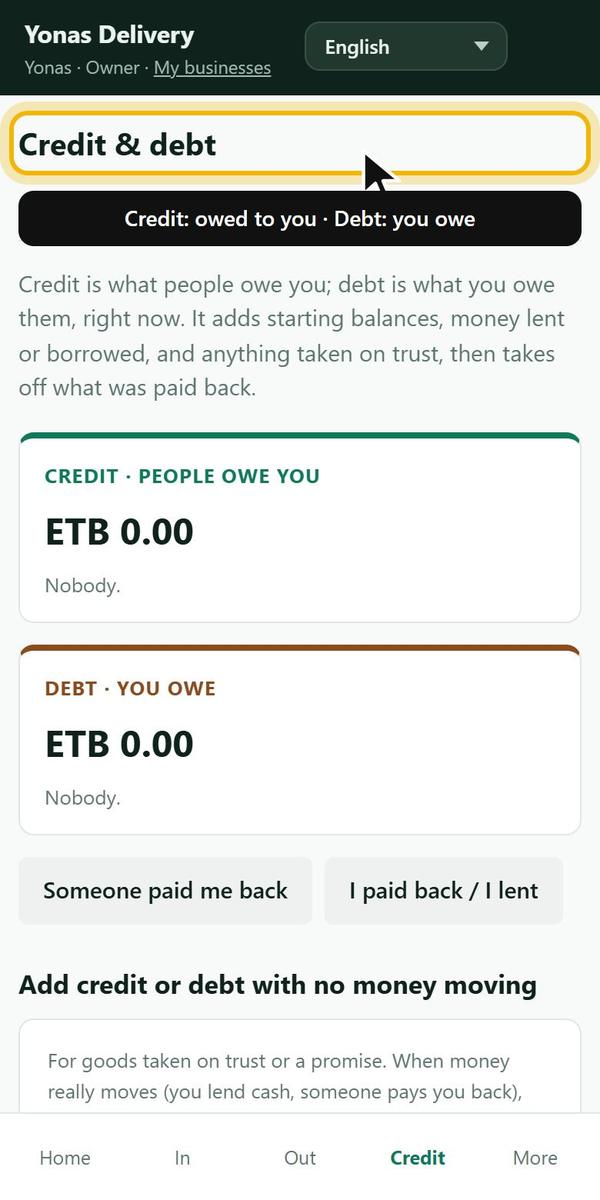
Credit and debt
Who: Owner, manager, accountant, Just meWhere: Home → Credit & debt, or Money → Credit & debt
- Credit is what people owe you. Debt is what you owe them.
- The page adds starting balances, money lent or borrowed, and anything taken on trust, then takes off what was paid back.
- Goods given or taken on trust with no money moving: Add credit or debt → Credit: they owe me, or Debt: I owe them → who, how much → Save.
- Money really moved (you lent cash, someone paid you back)? Use Money in or Money out instead.
 Example screen
Fix a wrong entry: edit or remove
Who: Owner and managerWhere: The Fix link beside an entry, or Credit & debt → tap a name
- Wrong credit or debt? Credit & debt → tap the person's name. You see every line that makes up the total.
- Tap Fix on the wrong line (typed twice, wrong person, wrong amount).
- Edit: change the amount, person, place or date → write why → Save the change. Or Remove: write why → Remove.
- Money in, Money out, cash counts, moves between places, stock that came in, batches made and supplier bills have Fix too.
- Once staff save something, only the owner or a manager can change it. A sale is fixed with Void on the sale itself.
- Nothing disappears quietly: Who did what keeps the old values and your reason.
- Want a clean new start in your first 30 days? Setup → Start again (owner only).
5. Stock
Goods in, counts, damage, barcodes.
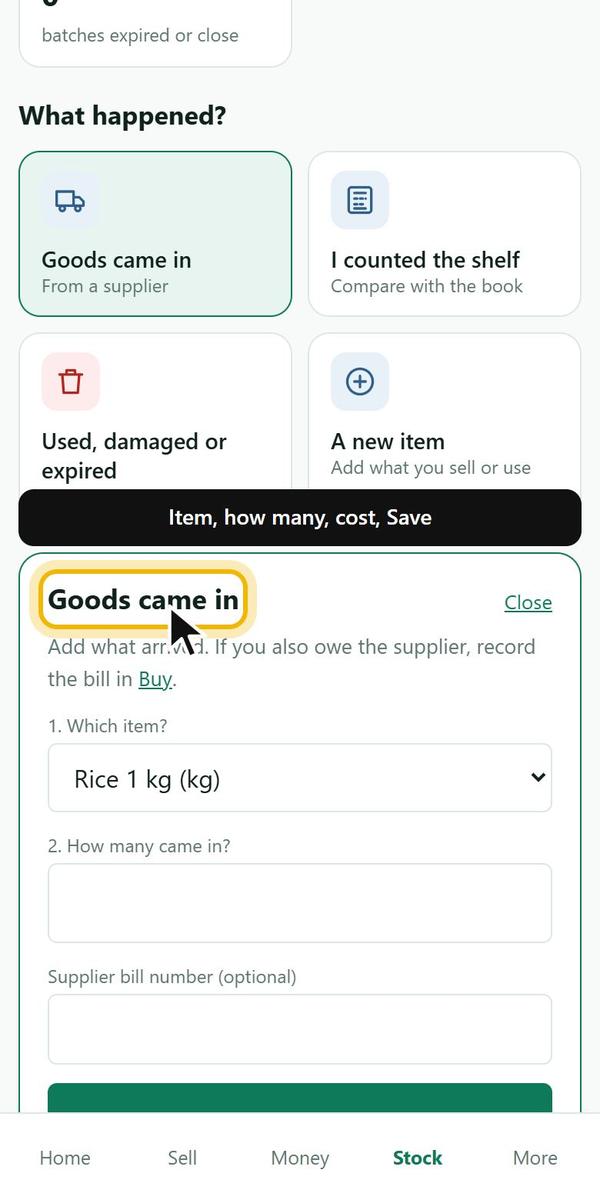
Goods came in
Who: Owner, manager, storekeeperWhere: Stock → Came in
- Choose the item, how many came, and the cost.
- Save. Stock goes up.
- Bought on an order? Use the order's The goods came in instead.
 Example screen
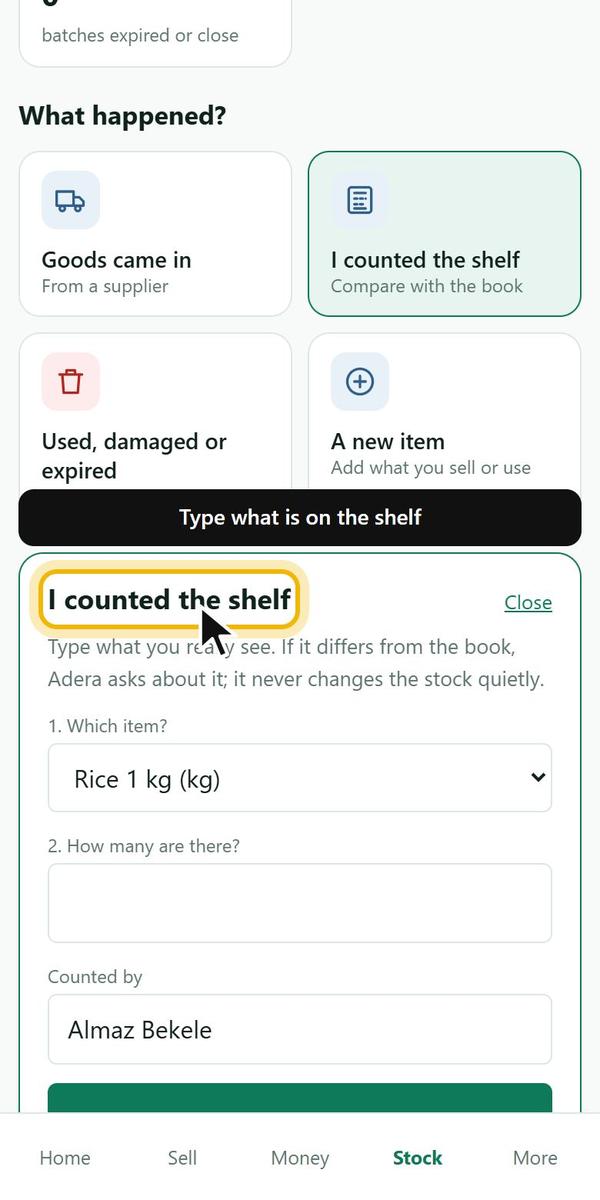
I counted the shelf
Who: Owner, manager, storekeeperWhere: Stock → Count
- Count the item on the shelf and in the store.
- Type the number and save.
- Adera records the difference and explains it.
 Example screen
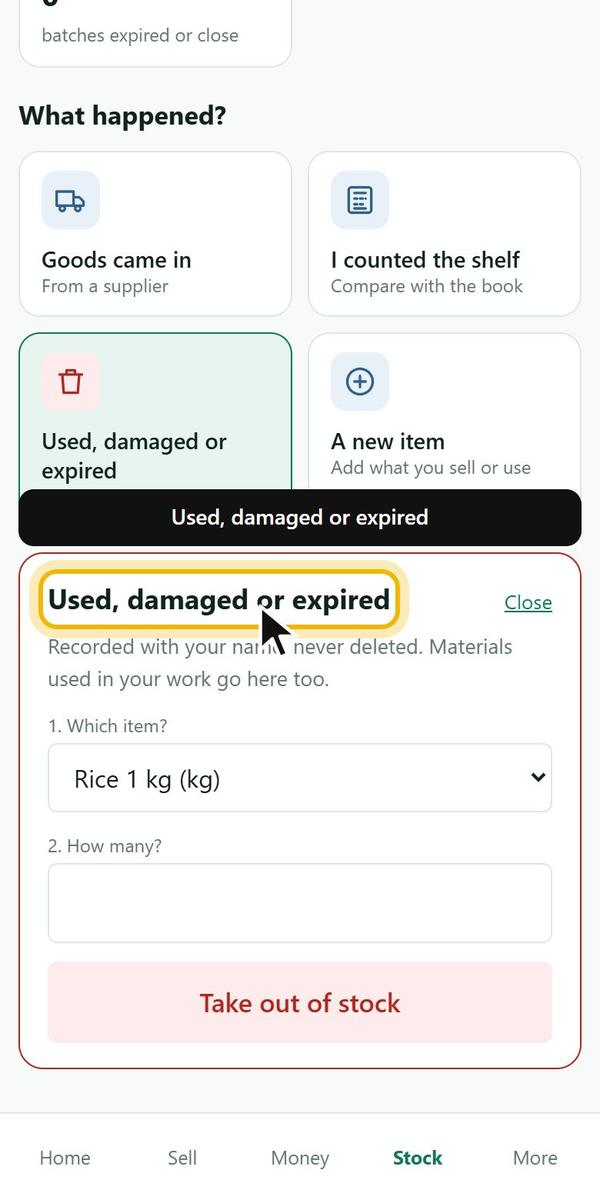
Used, damaged or expired
Who: Owner, manager, storekeeperWhere: Stock → Used or expired
- Choose the item and how many.
- Choose why and save.
 Example screen
Running low
Who: Owner, manager, storekeeperWhere: Stock → What you have
- Set Reorder at for an item in Setup.
- Stock and Orders show it under Time to order when it gets low.
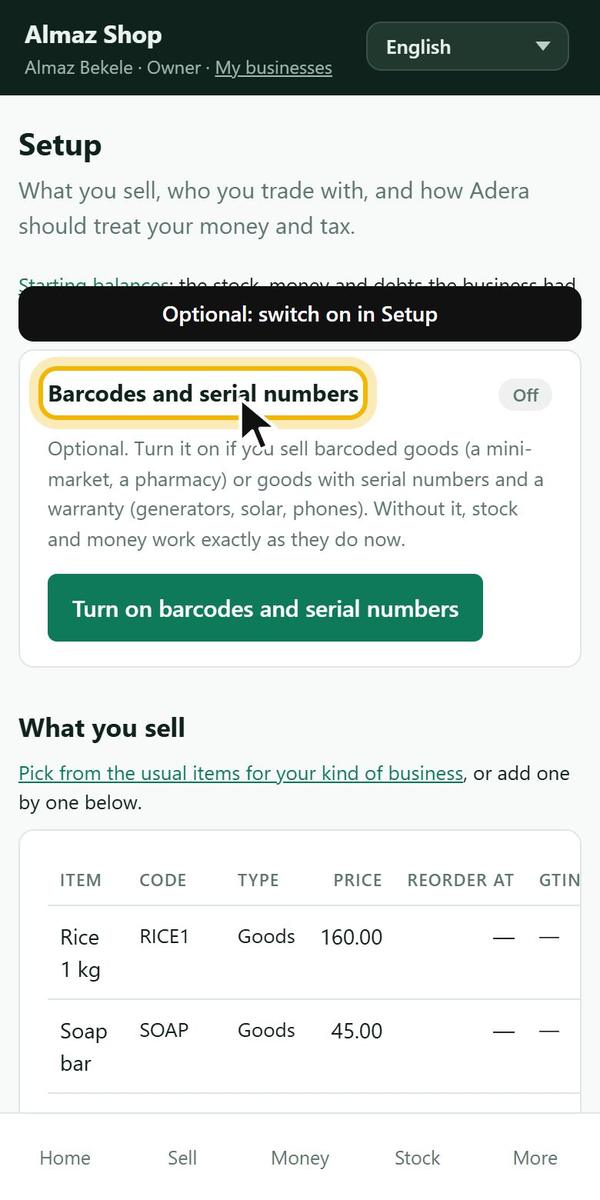
Barcodes and serial numbers
Who: Owner, managerWhere: Setup → Barcodes and serial numbers
- Switch it on in Setup (it is optional).
- Scan with a barcode scanner or the phone camera on Sell and Stock.
- Print labels for items without a barcode.
- For goods with serial numbers and warranty, find any unit by its serial.
- The camera needs adera.com.et (https).
 Example screen
6. Buying
Orders and supplier bills.
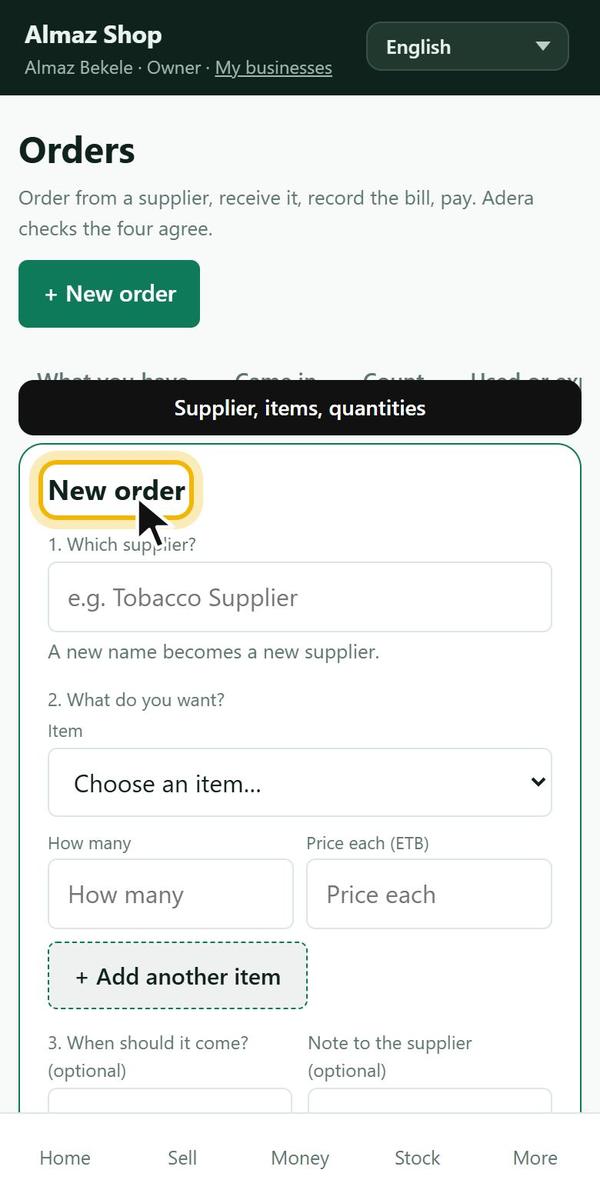
Order from a supplier
Who: Owner, manager, storekeeperWhere: Stock → Orders → New order
- Choose the supplier, the items and quantities.
- Send it to the supplier by Telegram or copy.
- When the goods come: The goods came in.
- Record The supplier's bill, then Pay the supplier.
- Ordered → came in → billed → paid, each step on the same order.
 Example screen
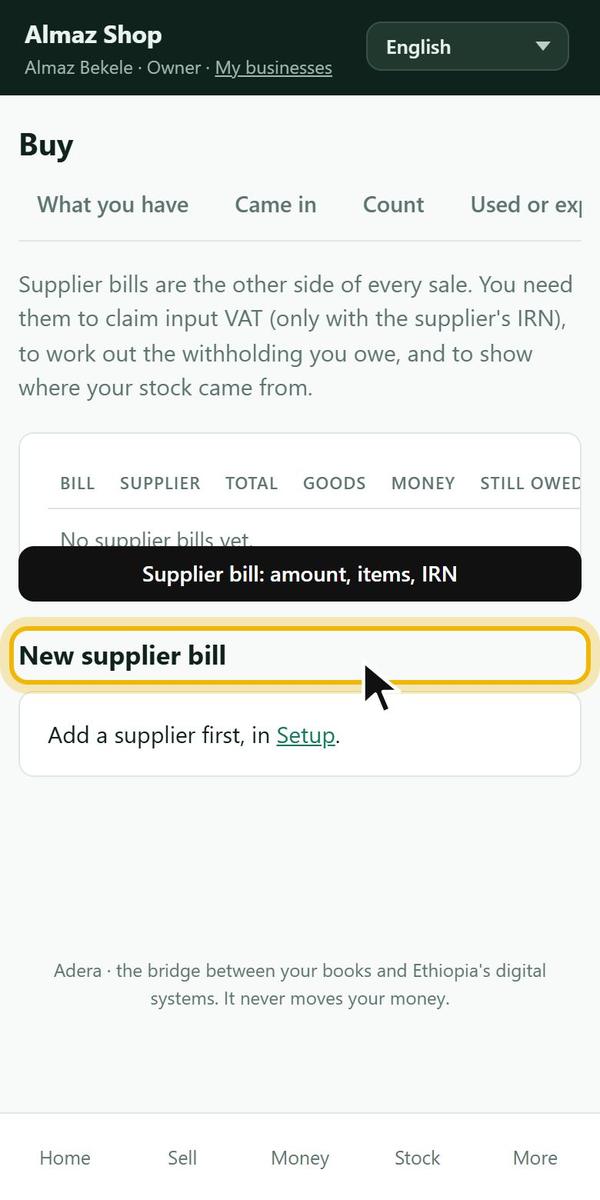
Record a supplier bill
Who: Owner, manager, storekeeper, accountantWhere: Stock → Supplier bills → New supplier bill
- Choose the supplier, the amount and the items.
- Type the supplier's IRN if they gave one: you need it to claim input VAT.
- Save. Pay it now or later.
 Example screen
7. Customers and credit
Your customers, the credit book, reminders.
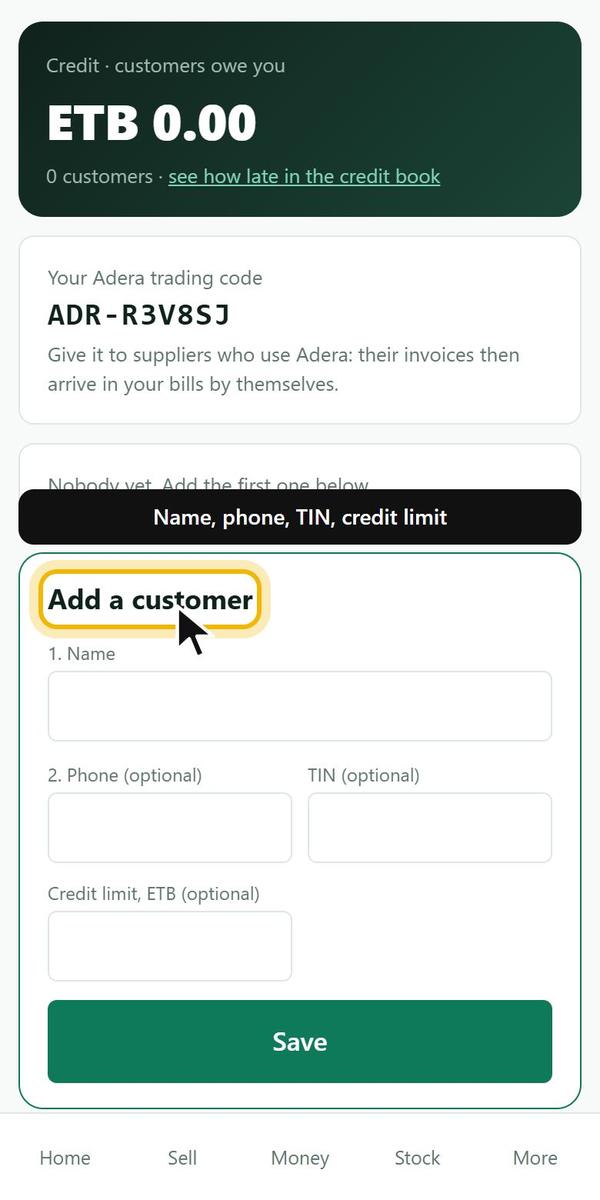
Add a customer or supplier
Who: Owner, manager, cashier, accountantWhere: Customers → Add a customer
- Type the name, phone, TIN if any, and a credit limit if you give credit.
- Save.
 Example screen
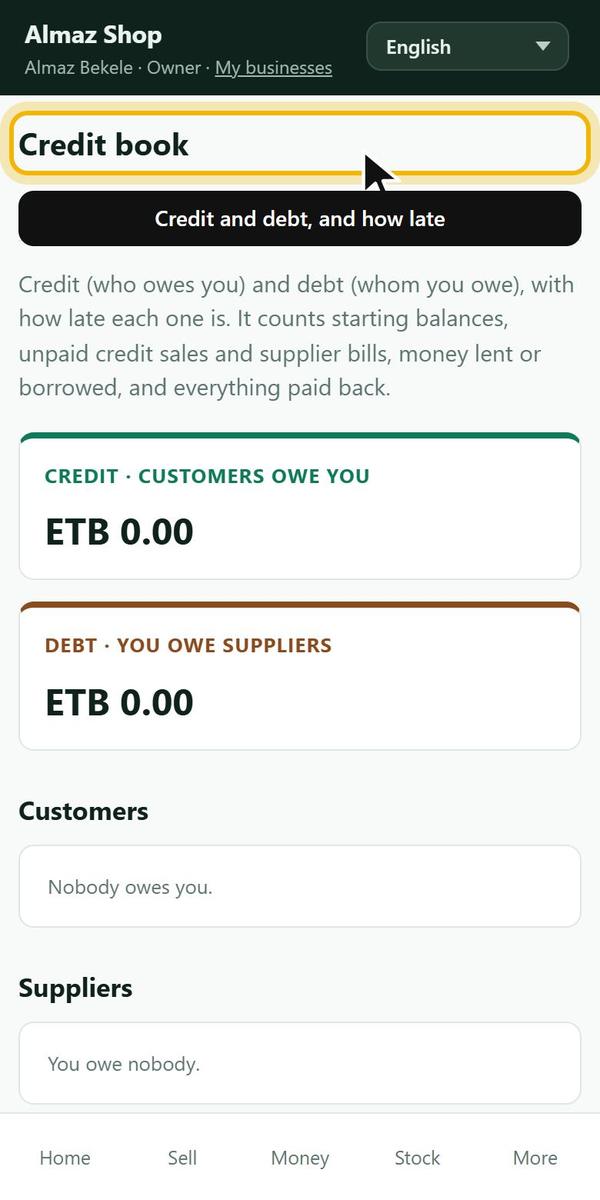
Credit book
Who: Owner, manager, accountantWhere: Customers → Credit book
- Credit: customers who owe you. Debt: suppliers you owe.
- Each one shows how much and how many days late.
 Example screen
Customers on Telegram: receipts and reminders
Who: Owner, managerWhere: Customers → the customer → Telegram
- Open the customer and send them your join link.
- Once they press Start, receipts can go to them and a polite reminder goes once a day while they owe.
- They can send /stop any time.
8. Production
Recipes, batches, cost per unit.
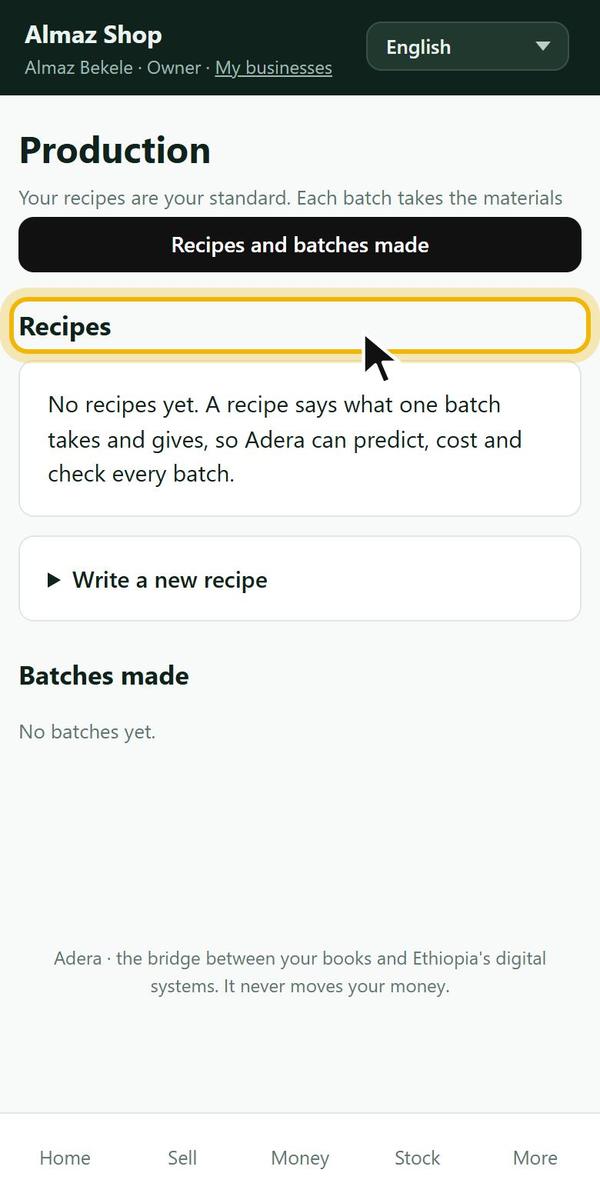
Recipes
Who: Owner, managerWhere: Production → Recipes
- Start from a standard (bakery, injera, laundry) or make your own.
- List what one batch takes and what it makes.
- Type any amount to see the expected output and cost.
 Example screen
We made a batch
Who: Owner, manager, storekeeperWhere: Production → We made a batch
- Choose the recipe and how much you made.
- Save. Materials go down, finished goods go up.
- A short batch beyond the tolerance is flagged.
9. Close the day and checks
Count, compare, answer questions.
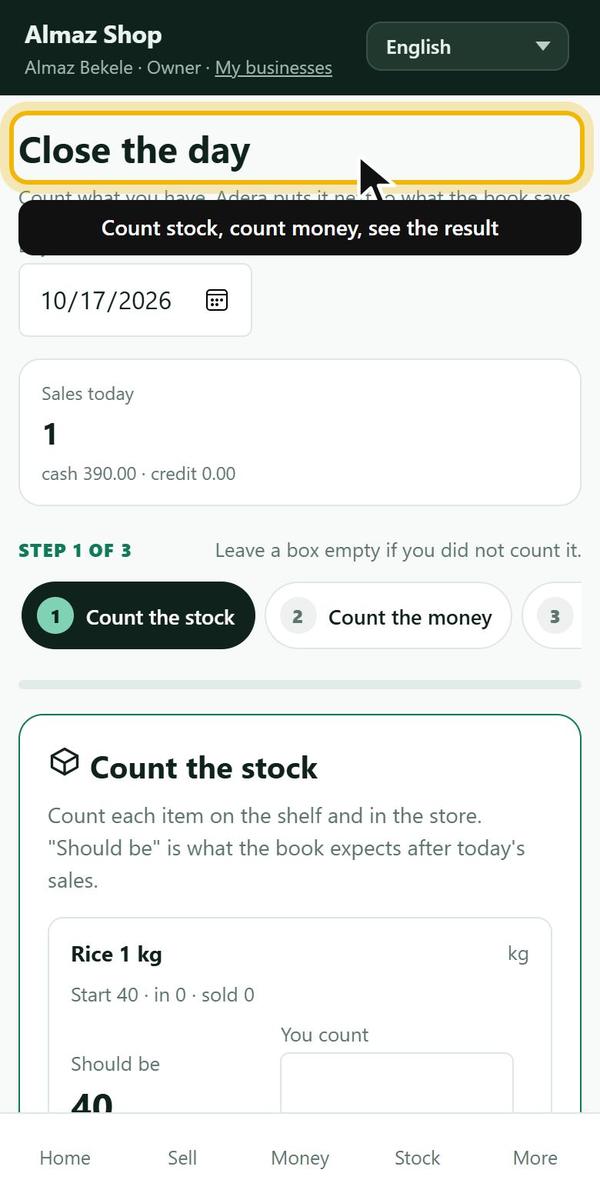
Close the day
Who: Owner, manager, cashier, accountantWhere: Home → Close the day
- Count the stock you are asked to count.
- Count the money in each place.
- See the result: what agrees, what is missing or over.
- A shortfall becomes a Check question. Adera does not guess.
 Example screen
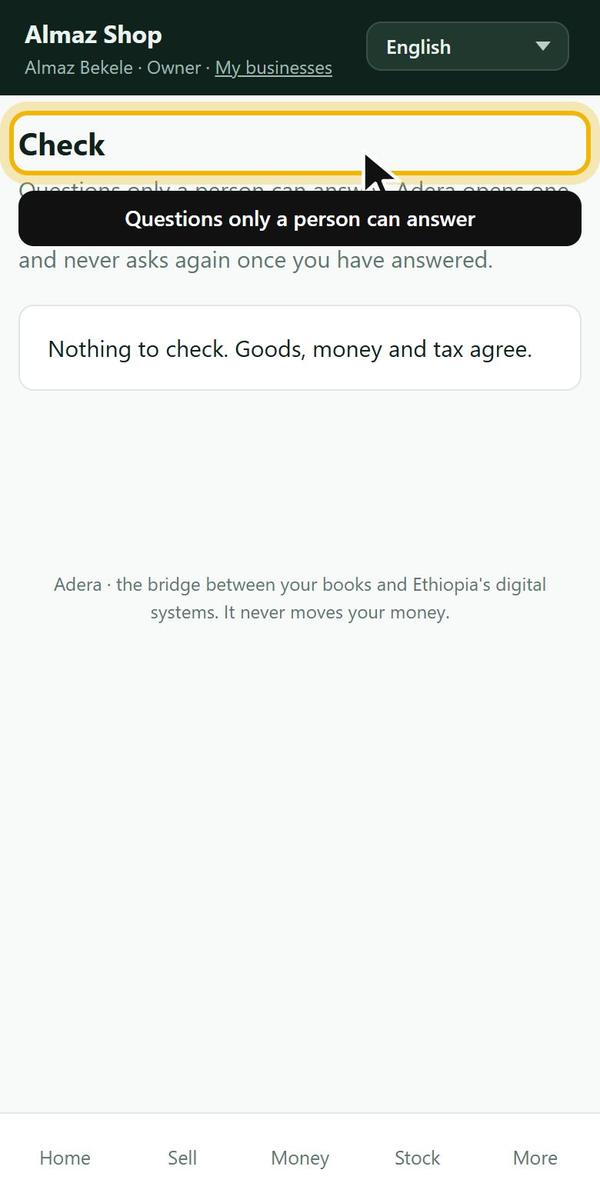
Answer Check questions
Who: EveryoneWhere: More → Check
- Open each question.
- Answer it: link the payment, accept the count, or explain.
- Answered questions never come back.
 Example screen
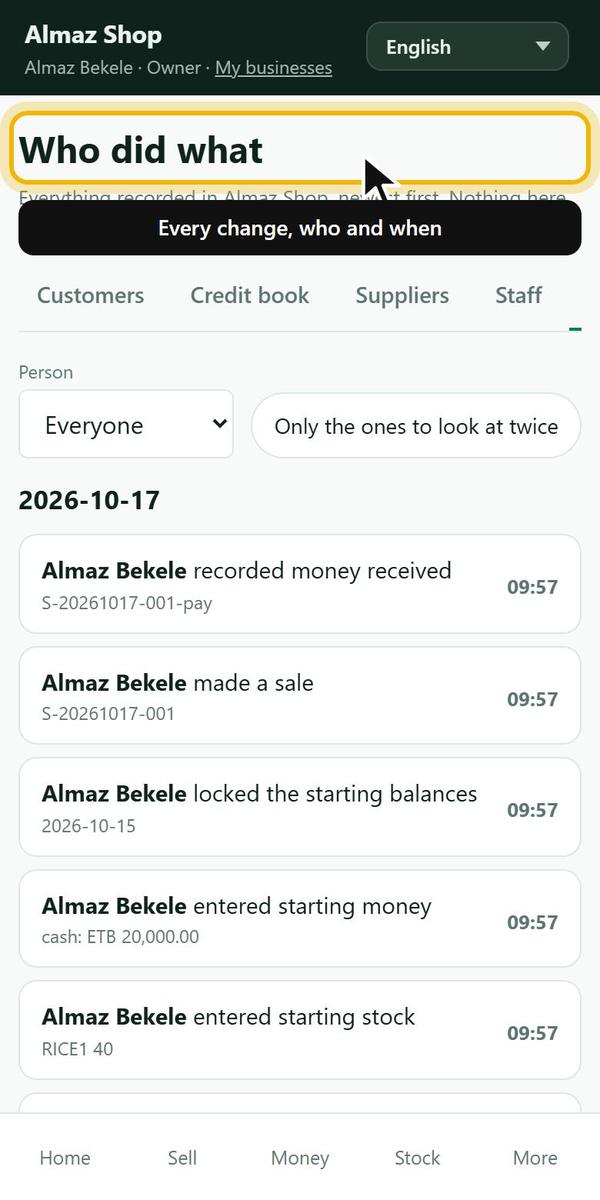
Who did what
Who: OwnerWhere: Staff → Who did what
- See every change by day: who did it and, for fixes, why.
 Example screen
10. Reports and Telegram messages
Numbers by day, week, month, and on Telegram.
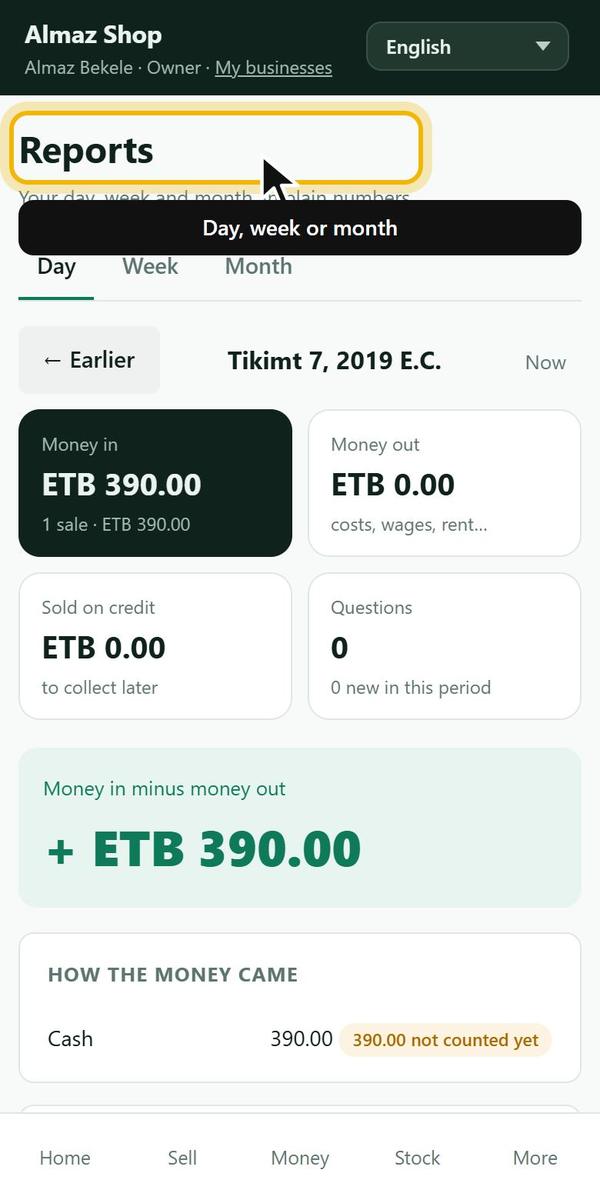
Reports
Who: Owner, manager, accountantWhere: Home → Reports
- Choose day, week or month.
- See how the money came, best sellers, where the money went, and money now in each place.
 Example screen
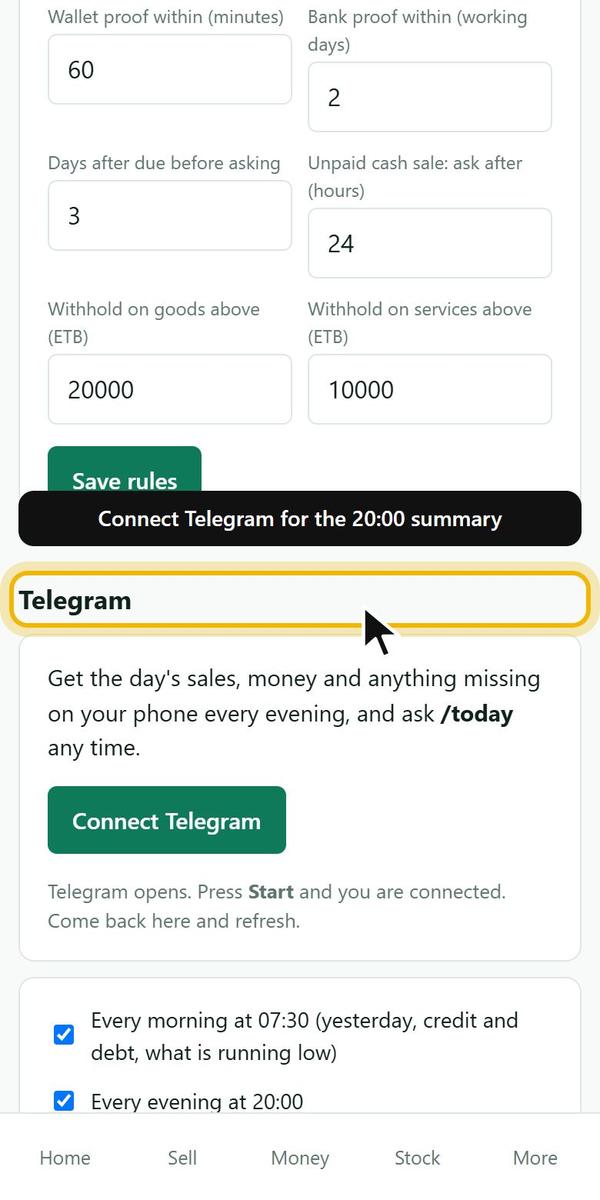
Telegram summaries for the business
Who: OwnerWhere: Setup → Telegram → Connect Telegram
- Tap Connect Telegram in Setup and press Start in the bot.
- Every evening at 20:00 the day's summary comes. A short morning message comes at 07:30.
- Choose the language in Setup → Messages in.
- Bot commands: /today /week /month /morning /stop /signin /reset.
 Example screen
11. Tax
VAT and withholding, ready for your accountant.
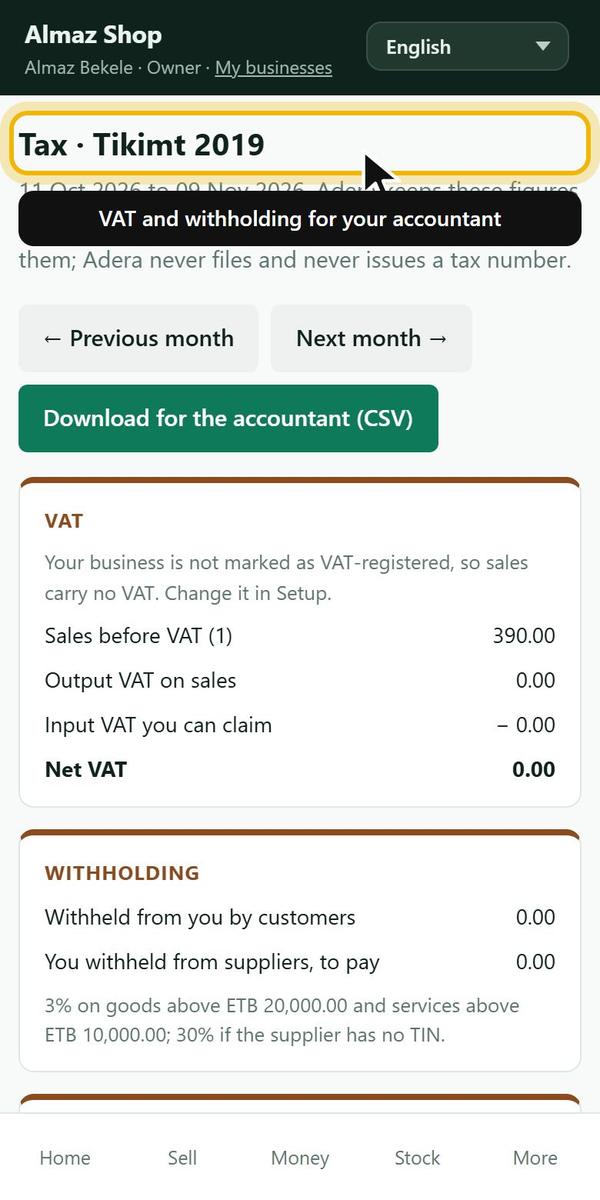
Tax by month
Who: Owner, manager, accountantWhere: Home → Tax
- See VAT, withholding and e-invoicing thresholds for the month.
- Download the figures for your accountant.
- Adera never files and never issues a tax number.
 Example screen
12. Team and roles
Who can sign in and what they can open.
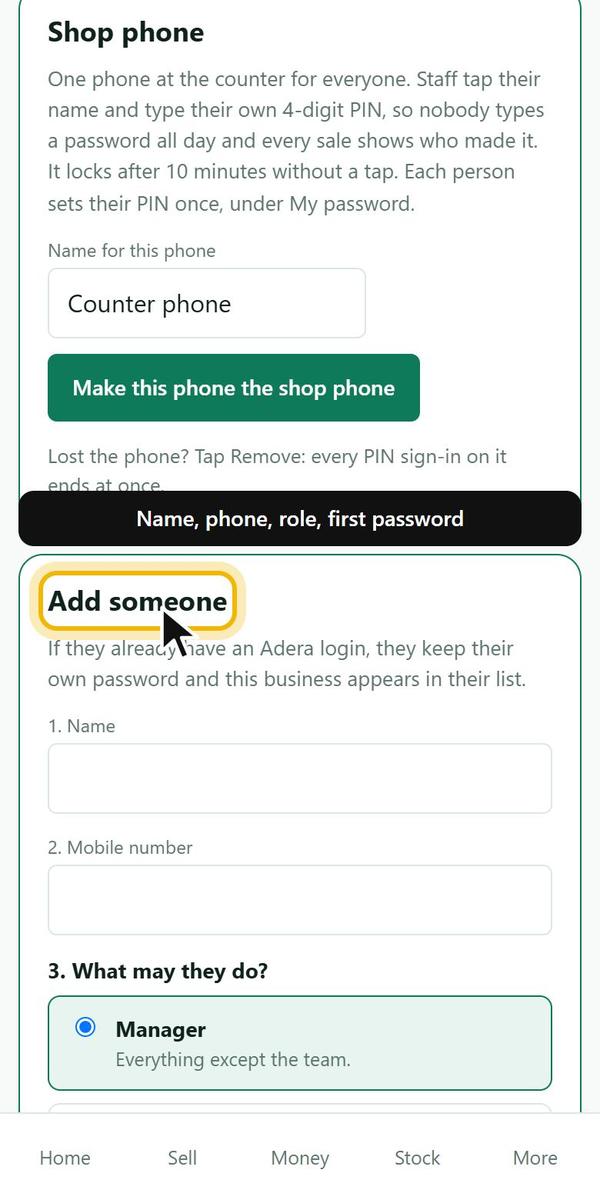
Add someone to the team
Who: OwnerWhere: More → Staff → Add someone
- Type the name and mobile number.
- Choose the role.
- Type a first password. They must change it at their first sign-in.
- Already on Adera? They keep their password and this business appears in their list.
 Example screen
Roles
Who: OwnerWhere: More → Staff → Roles
- Owner: everything. Manager: everything except the team.
- Cashier: sales, money and the cash count. Storekeeper: stock, receiving and counts. Accountant: money, purchases, tax and questions.
- Adjust cashier, storekeeper and accountant, or add roles of your own (Amharic names work).
13. Services and businesses
More services, more businesses, one phone number.
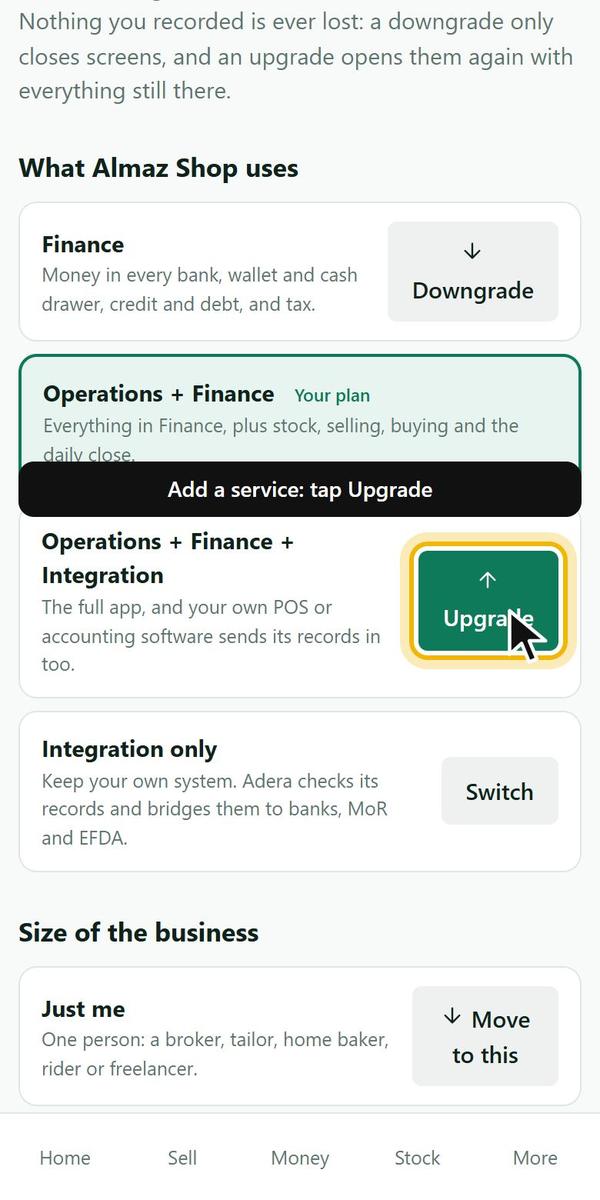
Add more services (My plan)
Who: OwnerWhere: Setup → Open My plan
- Open My plan.
- Tap Upgrade on the package you want, or Switch.
- The new screens open at once. Nothing recorded is ever lost.
- Finance · Operations + Finance · Operations + Finance + Integration · Integration only.
- Operations always includes Finance.
 Example screen
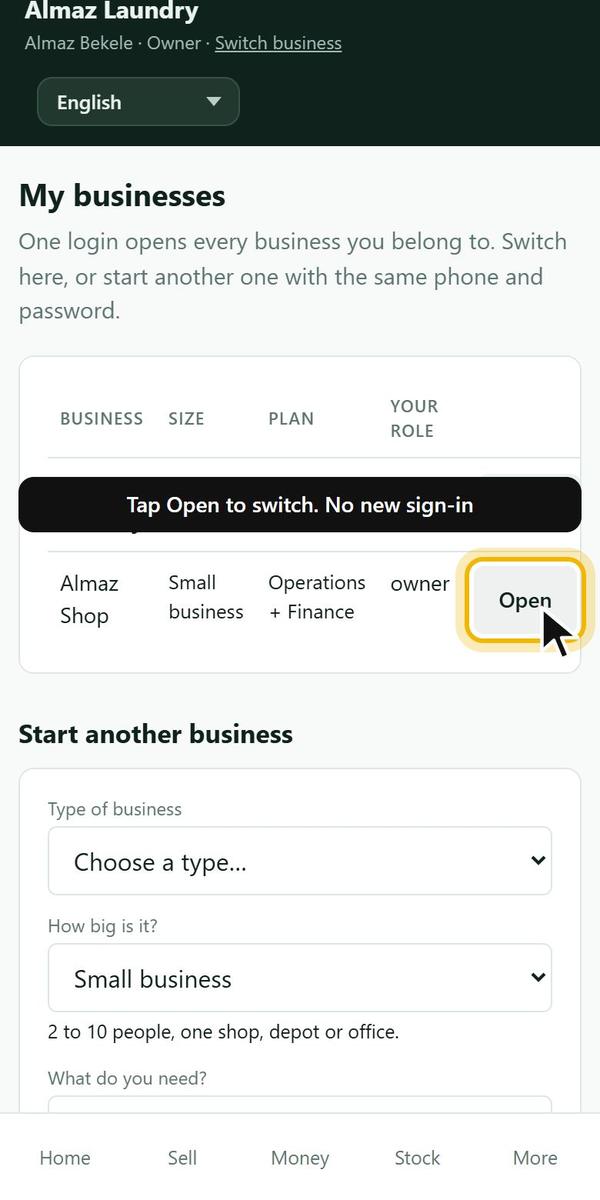
Two businesses on one phone number
Who: OwnerWhere: Top bar → My businesses
- Signed in, tap My businesses in the top bar.
- Under Start another business, fill it in and tap Start it.
- Switch any time with Open. No new sign-in.
- Do not sign up again with the same phone: Adera refuses it.
 Example screen
Connect your own system (Integration)
Who: Owner, managerWhere: More → Connect
- Ask for a practice key.
- Your POS or accounting software sends its sales, payments and stock moves.
- Problems show under Today and Check. Your system stays in charge.
14. Your data and fixing mistakes
Corrections, downloads, language.
Fix starting balances
Who: Owner, managerWhere: More → Starting balances
- Before locking: tap Edit on the wrong line and save the right number.
- Use Remove only for an item added by mistake.
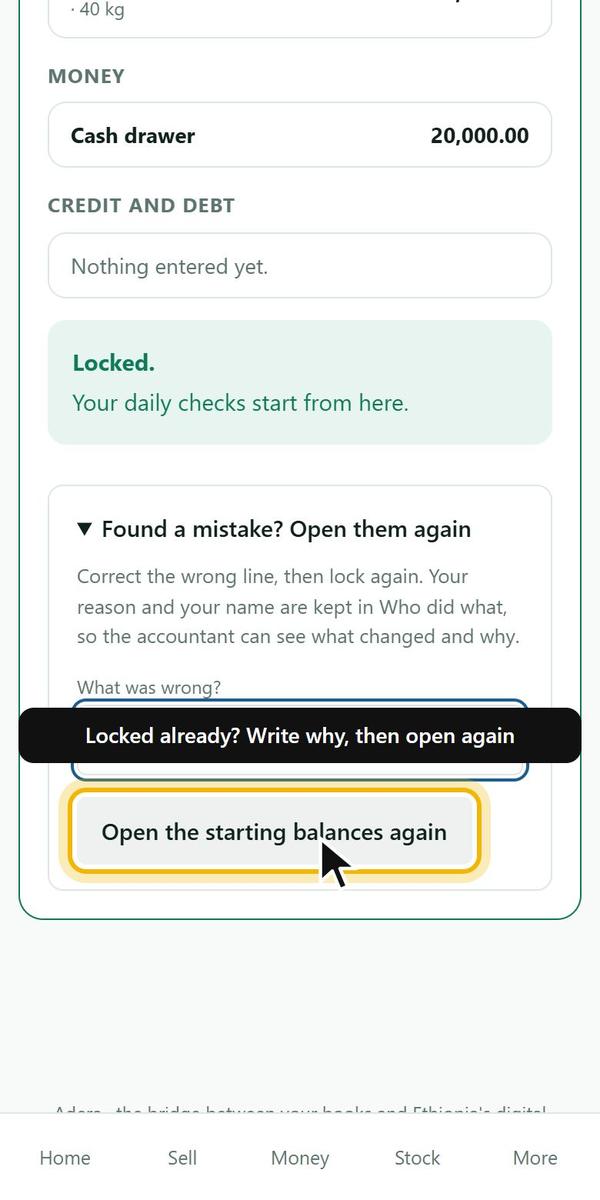
- After locking: Found a mistake? → write what was wrong → Open the starting balances again → fix → lock again.
- Your reason and name are kept in Who did what (Staff tab). If a manager reopens, the owner gets a Telegram message.
 Example screen
Change a price or an item name
Who: Owner, managerWhere: Setup → What you sell
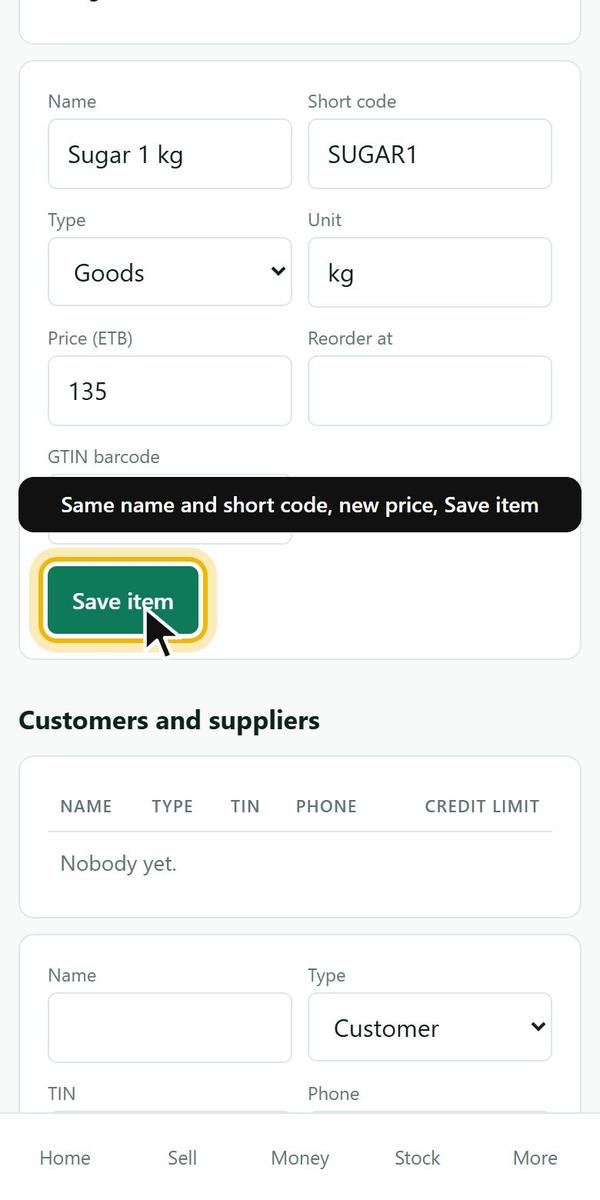
- In the item form type the same short code, the new price or name, and tap Save item.
- New sales use the new price. Old sales keep theirs.
 Example screen
What can be deleted
Who: Everyone
- Starting balance line: Remove, before locking only.
- Sale: never deleted; void it with a reason.
- Stock difference: count the shelf; the difference is explained, not erased.
- Money in or out entry: not yet; record the opposite entry with a note.
- The whole business: only Adera support can erase it. There is no erase button, on purpose.
- Your accountant and the tax office can always see what changed and why.
Download all your records
Who: OwnerWhere: Setup → Your data → Open Your data
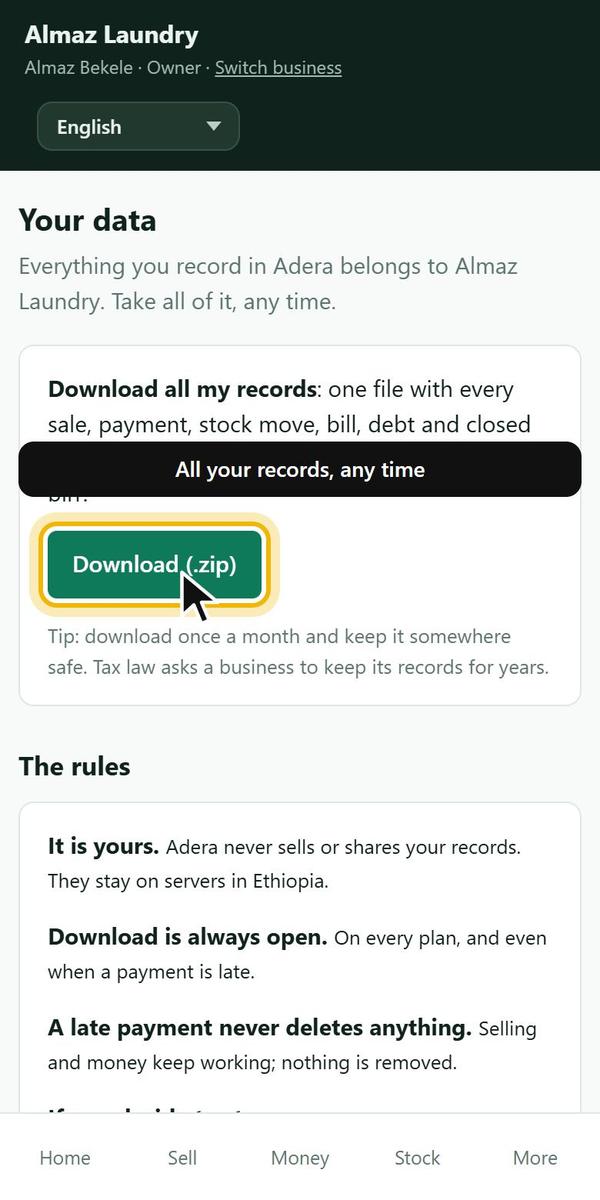
- Tap Download (.zip).
- The file holds every record as tables that open in Excel.
- Your data is yours. If you leave, it stays readable for 90 days, then it is deleted.
 Example screen
Change the language
Who: EveryoneWhere: Top bar or More → Language
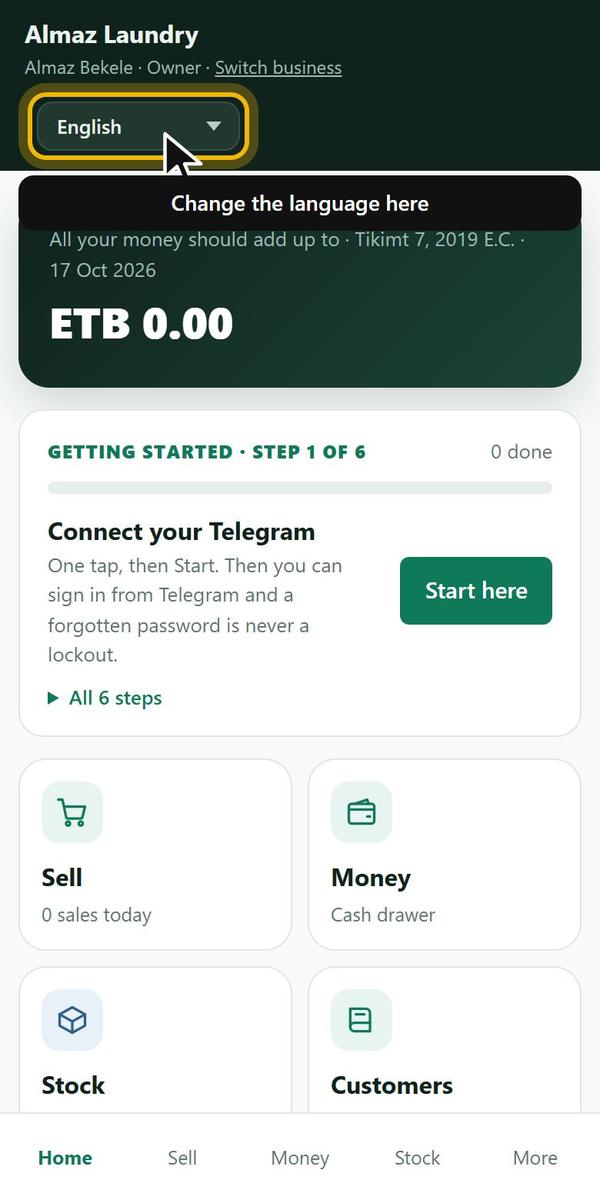
- Choose English, አማርኛ, Afaan Oromoo or Soomaali from the menu.
- Telegram messages follow Setup → Messages in.
 Example screen
Find help inside Adera
Who: EveryoneWhere: More → Help and manual, or the sign-in page
- Open More and type a word in Help and manual, then tap Search.
- Or tap Open the whole manual and pick a part.
- Locked out? The sign-in page has a Help and manual link too.
- Every topic has its own link: send it to a staff member who asks how.
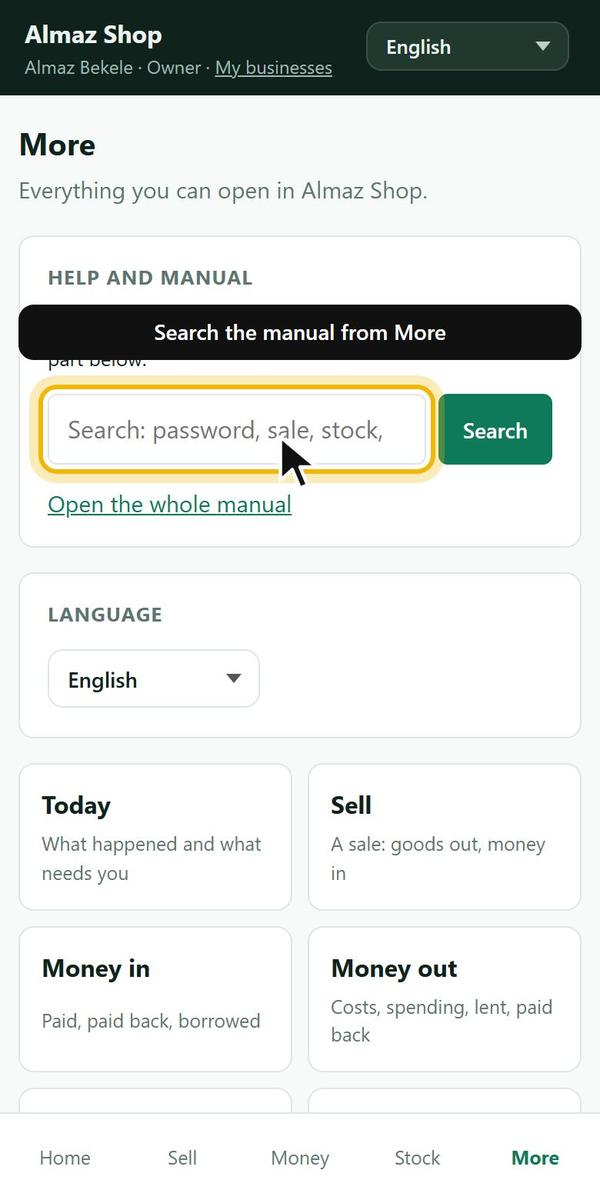 Example screen
Put Adera on your home screen
Who: EveryoneWhere: More → Install Adera
- Android: More → Install Adera.
- iPhone: Share → Add to Home Screen.
No topic matches that. Try another word, like password, sale or stock.
The manual is in English for now. The screens it describes follow your language.